How to Set Up Tech and Gadgets Gifts for Men: A Configuration Guide
Learn how to unbox, configure, and calibrate top tech gifts for men. Step-by-step setup tutorials for smart hubs, spatial audio, and wearables.
The Pre-Configuration Protocol: Why Setup Matters
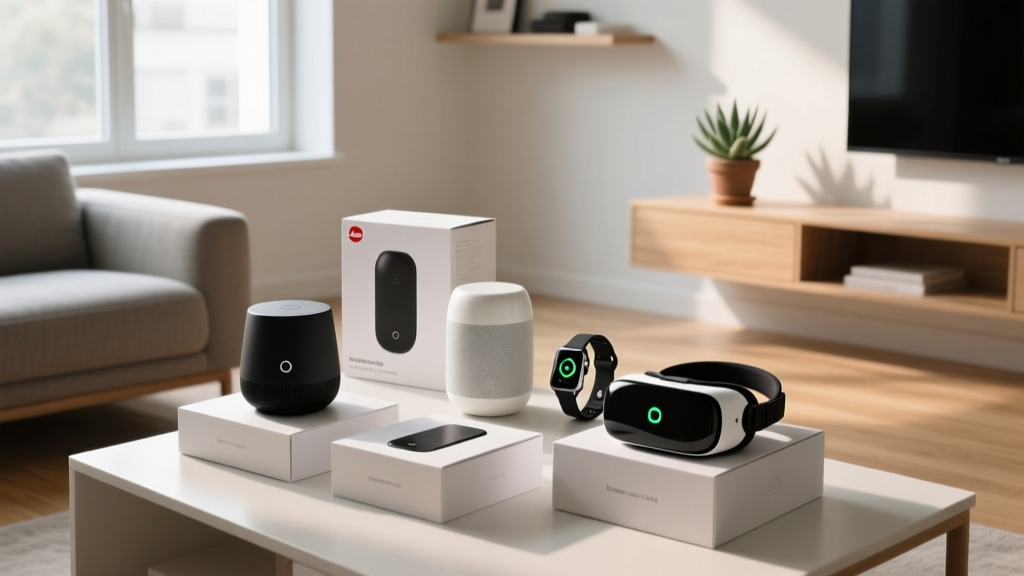
Gifting high-end technology often inadvertently gifts a frustrating two-hour chore. When you hand someone a sealed box containing a $450 spatial audio speaker or an $899 multisport GPS watch, you are handing them firmware updates, account creations, and acoustic calibrations. The most thoughtful approach to giving tech and gadgets gifts for men is executing a 'Pre-Configuration Protocol.' This involves unboxing, updating, and calibrating the device before wrapping it, ensuring the recipient experiences the 'magic' of the gadget immediately upon powering it on. This guide details the exact technical steps for configuring the most popular premium tech categories in 2026.
Spatial Audio Calibration: Sonos Era 300 Setup
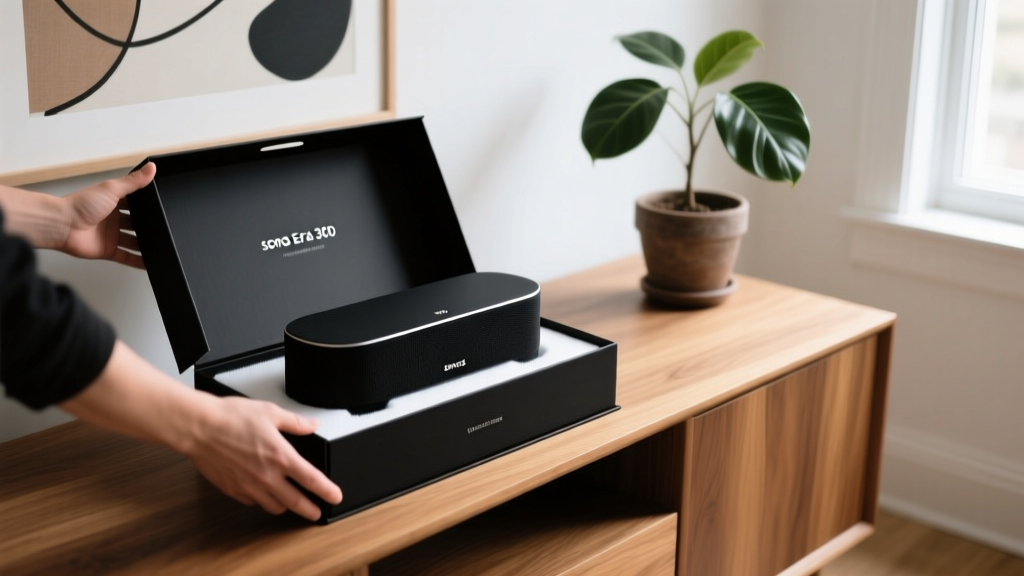
The Sonos Era 300 (retailing at $449) is a premier gift for audiophiles, but its upward-firing drivers require precise acoustic tuning to deliver true Dolby Atmos spatial audio. Out of the box, the speaker sounds flat until Trueplay calibration is executed.
Step-by-Step Trueplay Tuning
- Physical Placement: Position the Era 300 on a stable, non-resonant surface. Maintain a minimum clearance of 2 inches (5 cm) from rear walls to prevent bass frequency muddying, and ensure no objects are placed directly above the upward-firing tweeter.
- Network Handshake: Connect the speaker to the recipient's primary 2.4GHz or 5GHz Wi-Fi network via the Sonos app. Ensure the router's IGMP snooping is enabled to prevent multicast packet drops during setup.
- Acoustic Mapping: Initiate Trueplay via the iOS Sonos app (Android devices cannot perform the acoustic sweep due to hardware microphone fragmentation). Walk slowly around the room, waving the device in a continuous figure-eight motion to map the room's frequency response and phase alignment.
For a deeper understanding of how this acoustic mapping works, refer to CNET's technical tutorial on Sonos Trueplay tuning, which explains the underlying DSP (Digital Signal Processing) adjustments the speaker makes post-sweep.
Wearable Baseline Calibration: Oura Ring 4 & Garmin Fenix 8
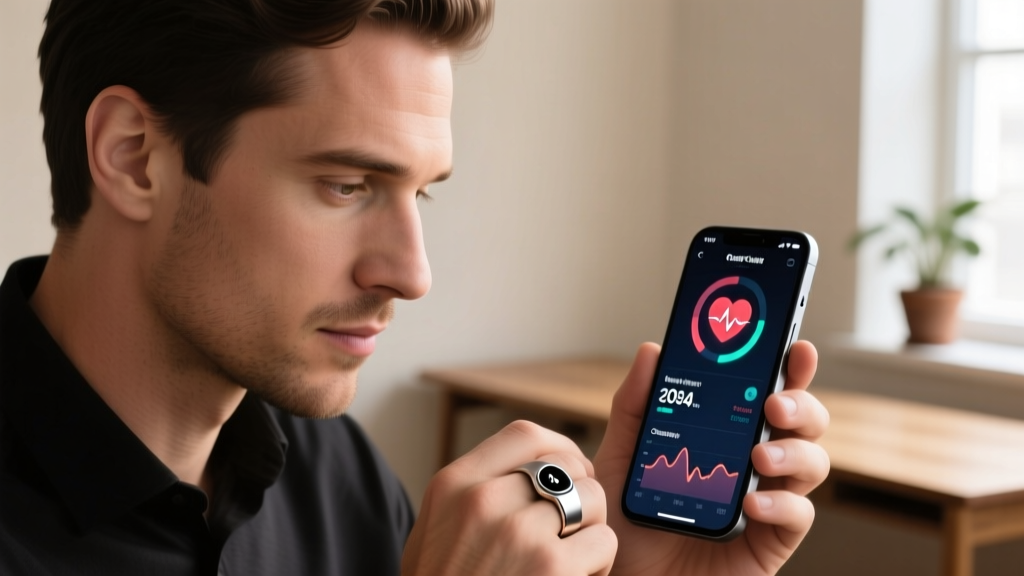
Wearables rely heavily on algorithmic baselines. Gifting a wearable requires managing both physical sizing and physiological data calibration. According to PCMag's technical review of the Oura Ring 4, the accuracy of the Readiness Score is entirely dependent on the initial 14-day data collection window.
Sizing and Hardware Preparation
Never guess ring size. The Oura Ring 4 ($349) requires a physical sizing kit. Order the sizing kit at least three weeks before the gifting occasion. The recipient must wear the plastic sizers for a full 24 hours to account for natural finger swelling caused by temperature changes and sodium intake. Once the exact size is confirmed, order the titanium model.
Physiological Baseline Setup
For the Garmin Fenix 8 ($899+), the Firstbeat Analytics engine requires a strict calibration period to establish the user's HRV (Heart Rate Variability) baseline. If you are pre-configuring the watch:
- Create the Garmin Connect account using the recipient's email.
- Input their exact age, weight, and height, as these dictate the VO2 Max estimation algorithms.
- Enable 'Nightly Recharge' and 'Body Battery' metrics in the device settings.
- Include a printed note in the gift box explaining that the watch must be worn to sleep for the first 14 consecutive nights to unlock the 'Training Readiness' score.
| Device | Sizing/Prep Wait | Calibration Period | Critical First Step |
|---|---|---|---|
| Oura Ring 4 | 21 Days (Sizing Kit) | 7 Days (Sleep Baseline) | Wear on index or middle finger |
| Garmin Fenix 8 | None | 14 Days (HRV Baseline) | Wear to sleep for 14 nights |
| Apple Watch Ultra 2 | None | 180 Days (Cardio Fitness) | Complete outdoor walking route |
Smart Home Hub Integration: Apple TV 4K & Matter Networks
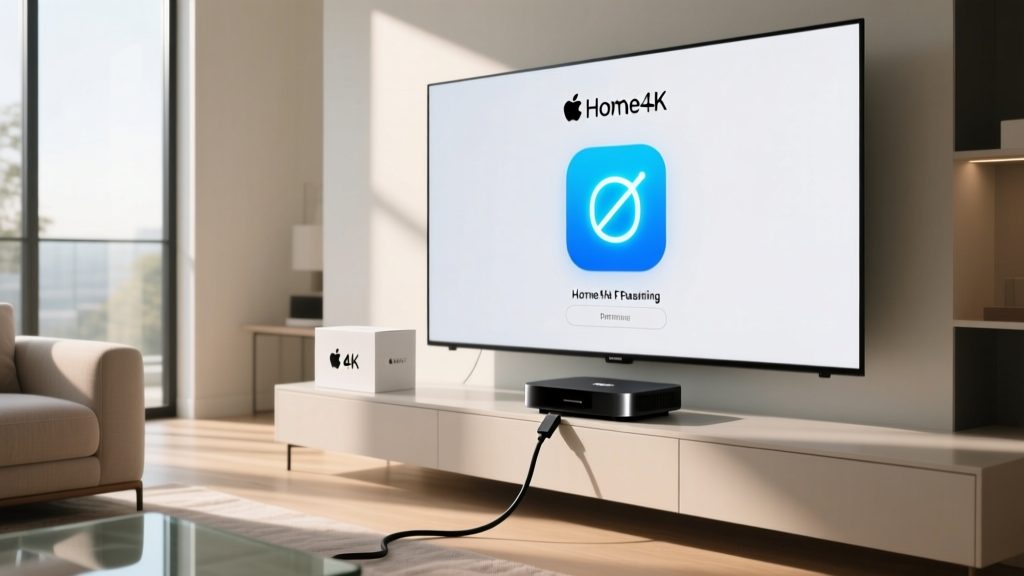
Smart home hubs are the central nervous system of modern connected homes. As of early 2026, the Matter 1.3 specification has largely unified cross-platform compatibility, but the underlying network topology still requires careful configuration. The Apple TV 4K (3rd Gen, $129) is an ideal gift because it doubles as a Thread Border Router, bridging low-power mesh devices to the main Wi-Fi network.
Configuring the Thread Border Router
To ensure the recipient's smart home operates without latency, follow this integration sequence:
- Ethernet Backhaul: If the recipient's TV setup permits, connect the Apple TV 4K directly to the router via a Cat6 Ethernet cable. Thread border routers perform significantly better with a hardwired backhaul, reducing mesh network latency by up to 40%.
- HomeKit Hub Activation: Sign in with the recipient's Apple ID. Navigate to Settings > Users and Accounts > iCloud, and ensure 'HomeKit' is toggled on. This establishes the device as the primary home hub.
- Thread Network Verification: Download a network scanner app (like Thread Scanner) on an iOS device to verify that the Apple TV is actively broadcasting the Thread mesh network credentials.
Understanding the importance of this mesh topology is critical for smart home stability. As detailed in The Verge's comprehensive guide to the Matter standard, Thread border routers like the Apple TV 4K prevent the Wi-Fi congestion that traditionally plagues smart homes with dozens of connected endpoints.
The 'Hand-Off' Protocol: Presenting Pre-Configured Tech
How you physically present the configured device dictates the unboxing experience. If you have performed a factory reset after updating firmware, repackage the device using the original inserts. Place a customized 'Quick Start' card on top of the device inside the box. This card should include:
- The Wi-Fi network name and a QR code for instant network joining.
- A note explaining which specific app needs to be downloaded (e.g., 'Download the Sonos app, not the generic Bluetooth menu').
- The physical gift receipt, taped to the outside of the shipping carton, not the retail box, to preserve the premium unboxing aesthetic.
Frequently Asked Questions
Should I activate the warranty before gifting?
Yes. Register the product's serial number on the manufacturer's website using the recipient's name and email address. This ensures the 1-year limited warranty clock starts on the exact date of your purchase, and the recipient receives firmware update notifications directly.
How do I handle Wi-Fi passwords for smart home gifts?
Never hardcode your own Wi-Fi credentials into a gifted smart home device unless you live with the recipient. Instead, use the device's 'Offline Setup' mode if available, or perform a network reset right before wrapping so the device boots into pairing mode, prompting the recipient to enter their own credentials via their smartphone.
What if the recipient uses Android and the gift requires iOS for setup?
Devices like the Sonos Era 300 require an iOS device for the initial Trueplay acoustic calibration. If the recipient is strictly an Android user, you must perform the Trueplay tuning yourself using your iPhone, then execute a soft reset (not a factory reset) so the acoustic profile remains saved in the speaker's onboard DSP memory while allowing the recipient to log into their own Android Sonos app.
Written by
Sarah KimSarah Kim holds certifications from both NASM (National Academy of Sports Medicine) and ACE (American Council on Exercise), along with a B.S. in Kinesiology from UCLA. She has spent 7 years bridging the gap between exercise science and consumer technology, evaluating fitness trackers, smart scales, sleep monitors, and recovery devices with clinical precision. Sarah has tested over 200 health-focused wearables in controlled lab settings and real-world training environments, comparing device data against gold-standard medical equipment like ECG monitors and DEXA scans. She consults for three fitness app companies on data accuracy standards and has presented research on wearable reliability at the American College of Sports Medicine (ACSM) annual conference. Her reviews emphasize clinical validity over marketing claims.