How to Set Up Cool Gadgets for Xmas in Your Home Office
Learn how to set up cool gadgets for Xmas in your home office. Step-by-step guide for Stream Deck +, Govee Hexa Pro, and Orbitkey mat.
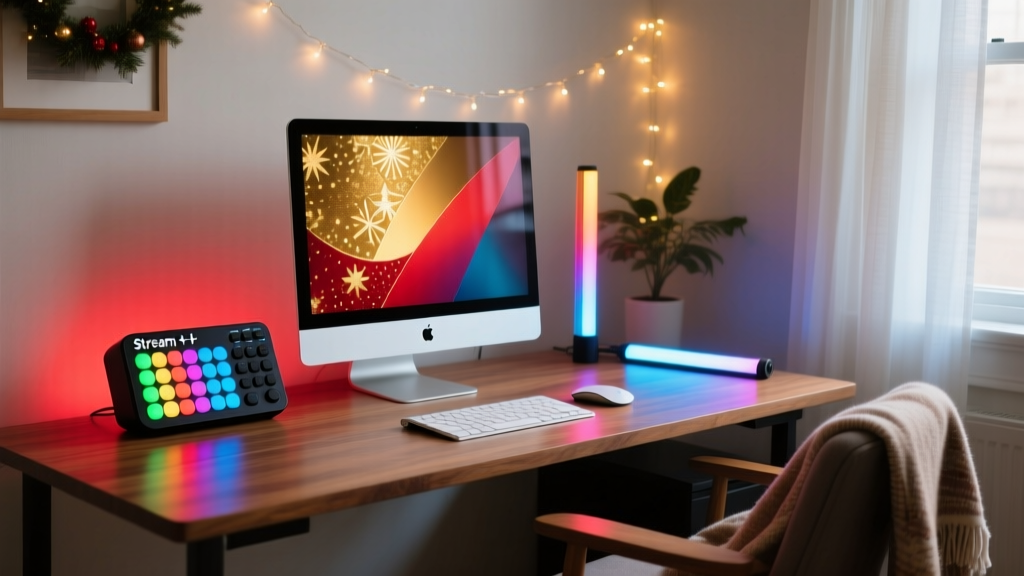
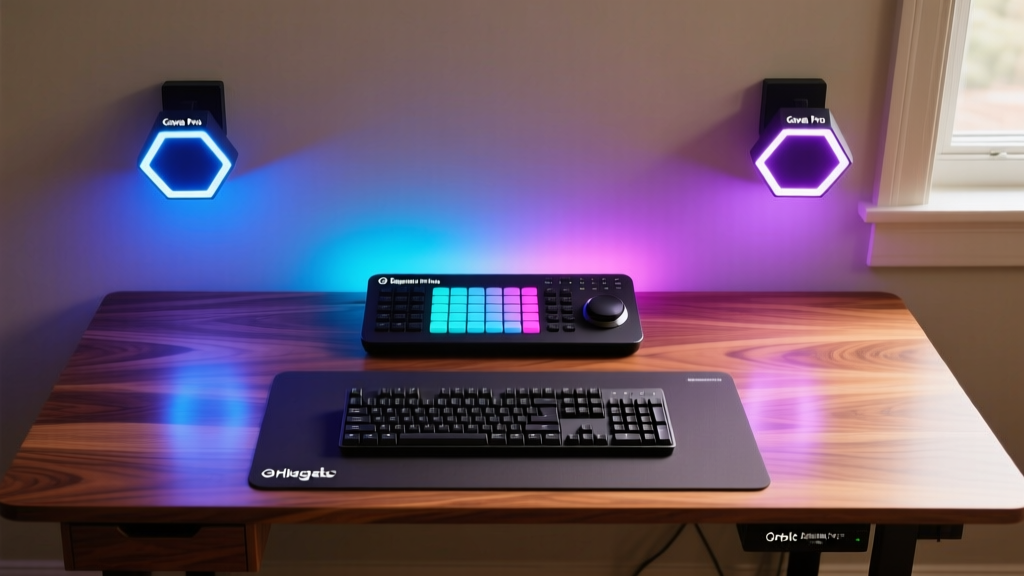
Unboxing home office technology is only the first step. To actually improve your daily workflow, devices like macro pads, ambient lighting, and premium desk mats require precise physical placement and software configuration. Misplaced bias lighting causes screen glare, and unmapped macro pads quickly become expensive paperweights. This guide details the exact setup parameters, network requirements, and ergonomic placements for three of the most highly requested home office gifts this season.
The Post-Holiday Desk Reset: Preparing Your Workspace
Before placing new hardware, you must clear a baseline footprint. According to Mayo Clinic's ergonomic guidelines, your primary work zone should maintain a clear 32-inch by 16-inch rectangle directly in front of your monitor. Remove legacy cable clutter and ensure your desk surface is completely dry and free of dust, which is critical for the adhesive mounting steps required for smart lighting.
- Verify your USB hub or dock supports Power Delivery (PD) of at least 65W to prevent peripheral brownouts.
- Ensure your Wi-Fi router has a dedicated 2.4GHz band enabled and visible for IoT device pairing.
- Have isopropyl alcohol (70% or higher) and a microfiber cloth ready for surface preparation.
Configuring the Elgato Stream Deck + for Deep Work
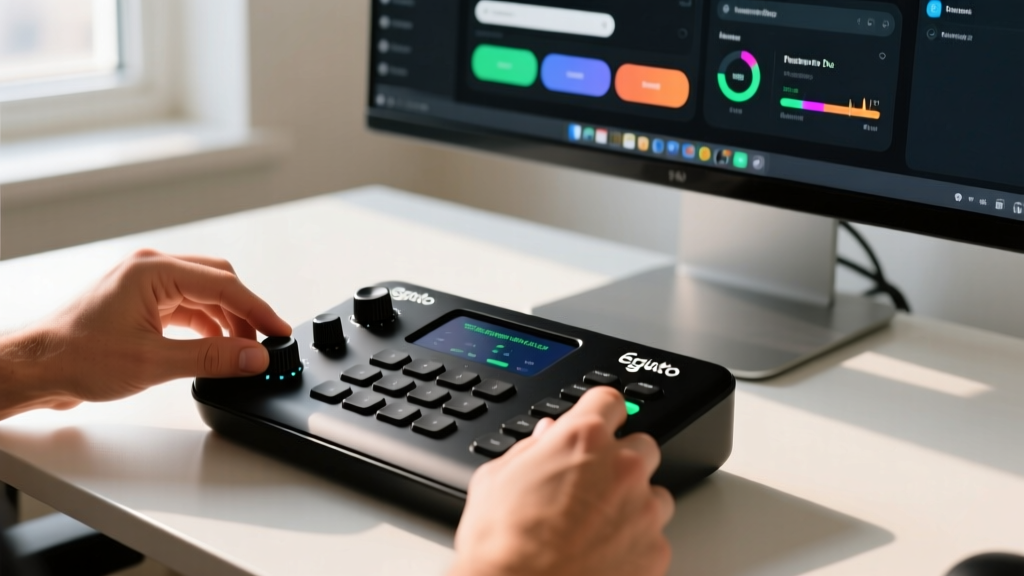
Retailing around $199, the Elgato Stream Deck + is a hybrid macro pad featuring eight customizable LCD keys and four haptic dials. Out of the box, it defaults to streaming controls. For a home office environment, you must reconfigure it for productivity and system management.
Hardware Placement and Power
Place the Stream Deck + on your dominant side, angled slightly inward at roughly 15 degrees. The device requires a direct USB-C connection. If you are routing it through a monitor hub, ensure the hub provides a minimum of 5V/1.5A; otherwise, the haptic feedback motors in the dials will stutter or fail to register turns.
Software Mapping for Productivity
Download the latest Stream Deck software (version 6.x or newer). Create a new profile named 'Deep Work' and map the hardware using this specific framework:
- Dial 1 (System Audio): Map to 'System Volume'. Enable the 'Press to Mute' toggle. This allows instant muting during unexpected interruptions on video calls.
- Dial 2 (Lighting Control): Link to your smart home API (e.g., Philips Hue or Govee). Map the rotation to adjust color temperature from 2700K (warm evening) to 6500K (daylight focus), and the press to toggle power.
- Key 1 (App Launcher): Use the 'Multi Action' feature to simultaneously open Notion, Slack, and your primary browser, while setting your OS status to 'Do Not Disturb'.
- Key 2 (Pomodoro Timer): Map a 25-minute countdown timer that displays visually on the LCD key, turning red when under 5 minutes remaining.
Mounting and Calibrating Govee Glide Hexa Pro
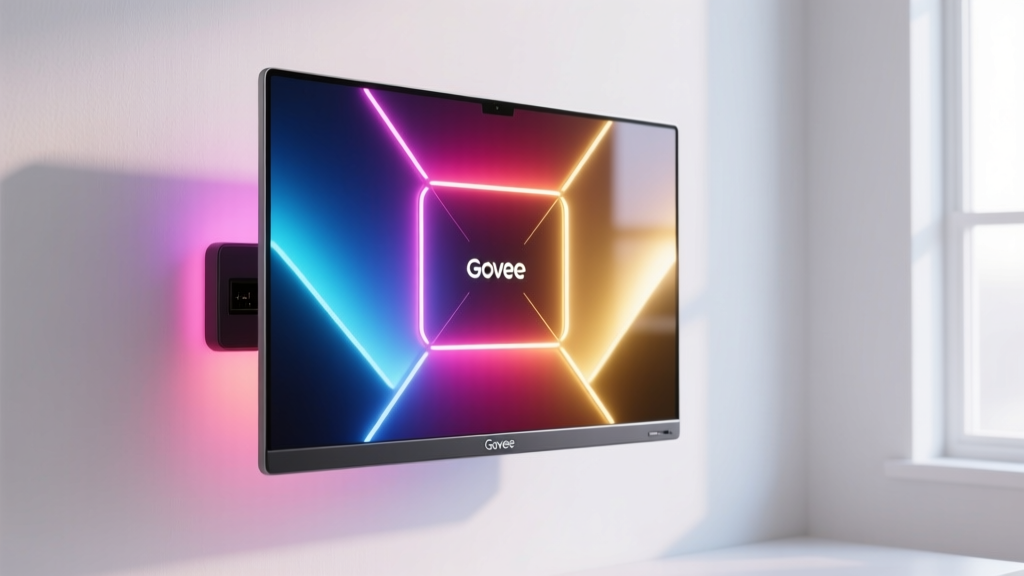
Ambient lighting reduces the contrast ratio between your bright monitor and the dark wall behind it, significantly decreasing eye strain. The American Academy of Ophthalmology recommends adjusting room lighting to match the brightness of your screen to prevent digital eye fatigue. The Govee Glide Hexa Pro (10-panel kit, approx. $159) uses RGBICW technology to achieve this, but physical placement dictates its effectiveness.
The 24-Inch Bias Lighting Rule
Do not mount the panels flush against the back of your monitor. For optimal light diffusion and to prevent harsh edge-banding on your wall, mount the Hexa Pro panels on the wall exactly 18 to 24 inches behind the monitor.
Critical Adhesive Step: The kit uses 3M VHB (Very High Bond) tape. After applying the tape to the wall and pressing the mounting bases firmly for 30 seconds, wait 24 hours before snapping the heavy hexagonal light panels onto the bases. Skipping this curing period is the number one cause of panels falling and damaging drywall.
Network Configuration for IoT Stability
The Govee Home App requires a 2.4GHz Wi-Fi connection. Modern Wi-Fi 6E routers often use Smart Connect, which merges 2.4GHz and 5GHz bands under a single SSID. This causes the Govee controller to drop offline repeatedly. Log into your router admin panel and create a dedicated IoT SSID strictly for the 2.4GHz band to ensure the lighting stays connected during deep work sessions.
Integrating the Orbitkey Desk Mat
The Orbitkey Desk Mat (31.5 x 15.7 inches) combines a nylon canvas surface with a vegan leather base. Unlike standard mousepads, it features an integrated document hideaway and a magnetic cable management strap.
Position the mat so the top edge aligns perfectly with the base of your monitor stand. Route your keyboard and mouse cables through the integrated leather strap on the top right corner. This single routing point keeps the nylon canvas surface completely free of wire clutter, allowing your keyboard to slide smoothly when transitioning to handwriting or document review tasks.
Power and Cable Management Matrix
Adding multiple gadgets to a home office desk can easily overload standard power strips or cause cable spaghetti. Use the matrix below to plan your power distribution and cable routing.
| Device | Power Draw | Connection | Routing Strategy |
|---|---|---|---|
| Stream Deck + | 5V / 1.5A | USB-C to USB-A/C | Route under desk via monitor arm cable channel |
| Govee Hexa Pro | 24W Max | Proprietary DC to Wall | Run power cable down wall corner, hide with paintable raceway |
| Orbitkey Mat | N/A (Passive) | N/A | Use integrated strap to bundle peripheral cables |
Troubleshooting Common Setup Hiccups
Even with careful planning, integrating new tech into an existing workspace presents edge cases. Here is how to resolve the most frequent issues encountered during home office gadget setup.
Stream Deck Keys Displaying Black Screens
Cause: Insufficient power delivery from an unpowered USB hub or a front-panel PC case port.
Fix: Bypass the hub and plug the Stream Deck + directly into a rear motherboard USB 3.0 port, or use a dedicated powered USB hub with its own AC wall adapter.
Govee Lights Flickering or Desyncing
Cause: Firmware mismatch between the controller and the individual light panels, often occurring right out of the box.
Fix: Open the Govee Home App, navigate to Device Settings, and force a firmware update. If the app fails to find the device, perform a hard reset by unplugging the power adapter for 60 seconds, then hold the physical power button on the controller for 10 seconds upon reconnection.
Desk Mat Edges Curling
Cause: The mat was stored rolled tightly in its shipping tube and the vegan leather base has taken a 'set' memory.
Fix: Lay the mat flat on the desk. Place heavy, flat objects (like hardcover books or your monitor base) on the four corners for 48 hours. Do not attempt to reverse-roll the mat, as this will crease the nylon canvas top layer permanently.
Written by
David OkaforDavid Okafor is an ASE (Automotive Service Excellence) Master Certified Technician with 15 years of professional experience in vehicle diagnostics, aftermarket electronics installation, and fleet management. He holds an Associate Degree in Automotive Technology from Universal Technical Institute and certifications in mobile electronics (MECP Certified Installer). David has installed and reviewed over 800 car tech products — from OBD2 scanners and dash cams to full infotainment system retrofits — in vehicles ranging from economy compacts to luxury SUVs. His popular YouTube channel "AutoTech David" has over 150,000 subscribers and features detailed installation tutorials and product teardowns. He is a regular contributor to the SEMA Show's aftermarket technology showcase and advises two automotive tech startups on product development.