How to Setup New Gadgets for Golfers: 2026 Calibration Guide
Master your 2026 golf tech. This step-by-step setup and calibration guide for new gadgets for golfers covers Arccos, HackMotion, and GPS syncing.
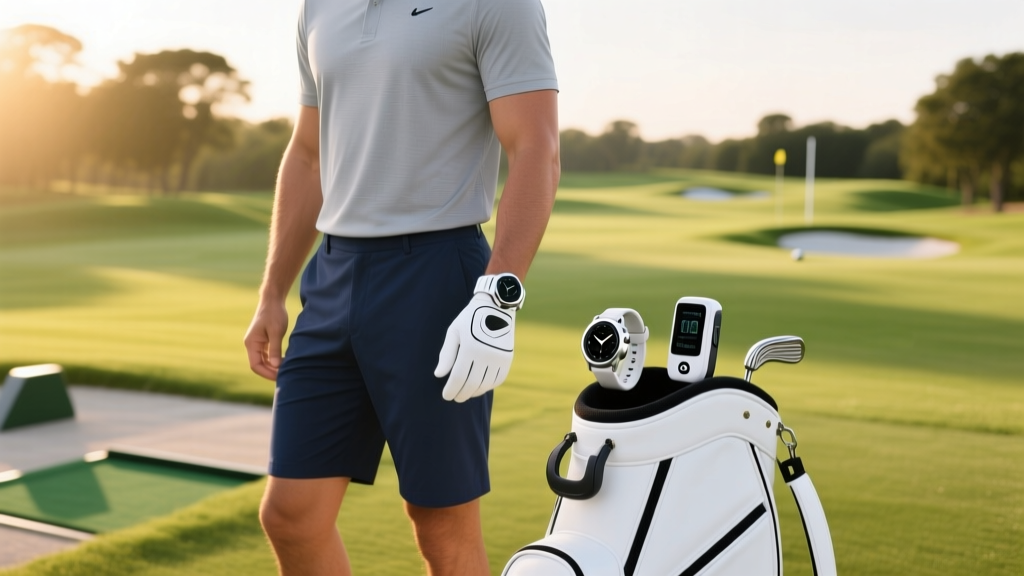
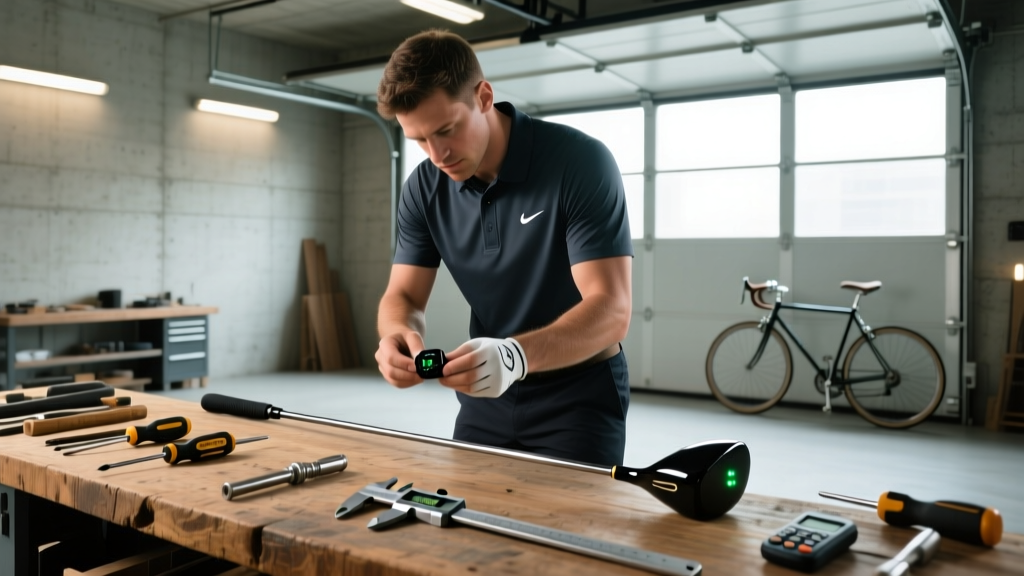
Integrating new gadgets for golfers into your bag requires more than simply unboxing and powering them on. The 2026 lineup of golf technology—specifically the Arccos Caddie Gen 4 sensors, HackMotion Pro wrist analyzer, and multi-band GPS watches like the Garmin Approach S76—relies heavily on precise baseline calibration. Without proper setup, the data these devices collect will be skewed, leading to incorrect yardage gaps and flawed swing diagnostics. This tutorial provides the exact technical procedures for installing, pairing, and calibrating the current generation of golf wearables and club sensors.
Phase 1: Arccos Caddie Gen 4 Sensor Installation and Pairing
The Arccos Caddie Gen 4 system utilizes advanced acoustic and gyroscope sensors to track club identity and shot location. The most common failure point in this system is improper physical installation, which causes the sensor to rattle or fail to detect the acoustic signature of the clubface striking the ball.
Step-by-Step Physical Installation
- Prepare the Grip: Ensure the top of your grip is clean and dry. If you are installing sensors into new grips, wait at least 4 hours after installation for the grip tape solvent to fully cure.
- Thread the Sensor: Screw the Gen 4 sensor into the grip cap by hand until it is flush. Do not use a standard screwdriver, as over-torquing will crack the internal acoustic membrane.
- Apply Exact Torque: Use the provided Arccos torque tool. The target torque specification is 1.5 Nm. If you do not have the proprietary tool, tighten it until it is snug, then give it exactly one-quarter turn further with a standard flathead.
- Verify Flush Fit: Run your thumb over the sensor. If it protrudes more than 1mm above the grip cap, it will catch on your glove during the swing and alter your grip pressure.
While the Gen 4 sensors feature Bluetooth 5.3 for improved connectivity, relying on your smartphone in your pocket requires the phone to be in your left front pocket (for right-handed golfers) to maintain a clear line of sight to the club sensors during the downswing. For unrestricted pocket placement, pair the sensors with the Arccos Link device, which acts as a dedicated Bluetooth hub and clips to your belt.
App Pairing and Acoustic Baseline
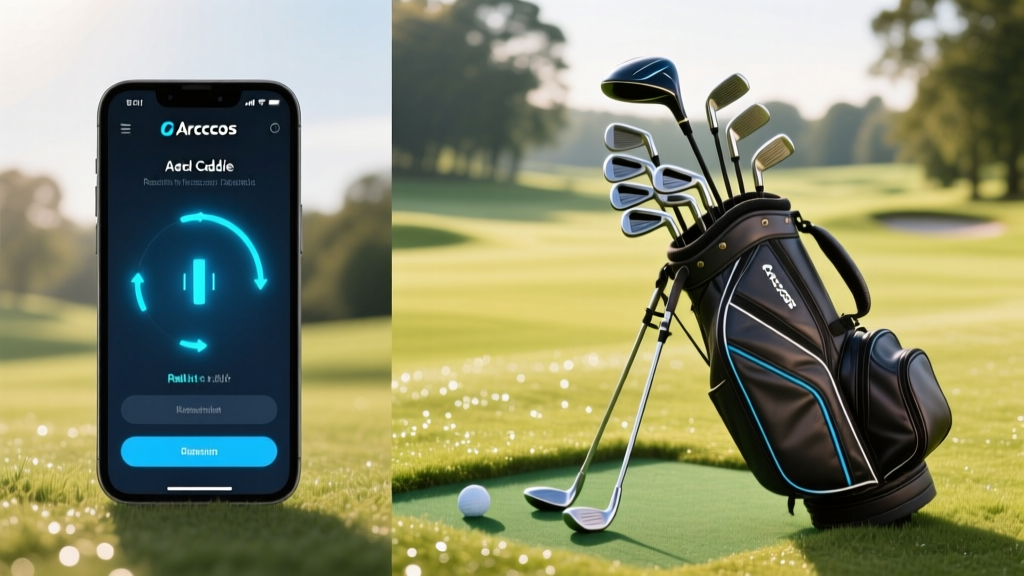
Once physically installed, open the Arccos Caddie app and navigate to Settings > Club Management. Pair each sensor individually. After pairing, you must perform an acoustic baseline test. Take your smartphone to the practice tee and hit three balls with your 7-iron. The app will analyze the acoustic signature to ensure it can distinguish your 7-iron from your 6-iron and 8-iron in the bag. If the app flags a sensor as 'Unrecognized', remove it, clean the threading, and reinstall it to ensure a tighter acoustic seal.
Phase 2: HackMotion Pro Wrist Sensor Calibration
The HackMotion Pro measures wrist flexion, extension, and radial/ulnar deviation in real-time. According to HackMotion's biomechanical data, tour professionals consistently deliver the club with 20 to 30 degrees of wrist flexion (bowing) at impact with a 6-iron. To accurately measure your deviation from this baseline, the sensor must be calibrated to your specific anatomy.
Mounting the Sensor Correctly
Slide the green fabric strap onto your lead wrist (left wrist for right-handed golfers). The sensor module must sit on the back of the hand, not the wrist joint itself. The bottom edge of the sensor should align precisely with the base of your knuckles. If it sits on the wrist joint, the bending of your wrist will push the sensor upward, creating false extension readings.
Running the Baseline Calibration Drill
Connect the sensor to the HackMotion app via Bluetooth and select 'Calibrate'. The app requires three distinct positions:
- Position 1 (Neutral): Stand upright, let your lead arm hang straight down, and let your hand relax naturally. Press 'Capture'.
- Position 2 (Address): Take your normal golf posture and ground the club. Ensure your lead wrist is in its natural address position (usually slightly cupped/extended). Press 'Capture'.
- Position 3 (Impact Simulation): Push your lead hand forward, simulating a forward shaft lean and a bowed lead wrist, as if you just struck a 6-iron. Press 'Capture'.
| Metric | Average Amateur | PGA Tour Average | Ideal Correction Target |
|---|---|---|---|
| Wrist Angle at Address | +15° (Extended/Cupped) | +5° (Slightly Cupped) | +10° (Neutral) |
| Wrist Angle at Top | +35° (Highly Cupped) | +10° (Flat) | +15° (Slight Cup) |
| Wrist Angle at Impact | +5° (Slightly Cupped) | -25° (Flexed/Bowed) | -20° (Flexed) |

Phase 3: Multi-Band GPS and Laser Rangefinder Syncing
Modern multi-band GPS watches, such as the Garmin Approach S76, offer sub-meter accuracy by connecting to multiple satellite constellations simultaneously. However, GPS provides the distance to the front, middle, and back of the green, while a laser rangefinder provides the exact distance to the pin. Syncing these two data points is critical for establishing your slope-adjusted baseline.
Establishing the Slope Baseline
When practicing with both devices, use the laser to get the exact pin distance, then log the GPS distance to the center of the green in your Garmin Golf app. Over 50 rounds, the app's algorithm will calculate your personal 'Plays Like' adjustment factor. If the GPS says 150 yards to the center, but the pin is tucked on a severe uphill slope and the laser reads 162 yards, the watch learns how your specific home course's elevation changes affect your ball flight.
According to the USGA Rules of Golf (Rule 4.3a), you may use a distance-measuring device during a round, but it must not measure elevation changes (slope) or wind. When playing in a sanctioned tournament, you must manually disable the 'Plays Like' slope feature on your Garmin watch and ensure your laser rangefinder's slope switch is physically toggled to the 'off' position, often requiring a magnetic faceplate or a visible switch to satisfy rules officials.
Troubleshooting Common Sync and Calibration Failures
Even with precise setup, environmental factors and firmware bugs can disrupt data collection. Use this decision tree to resolve common issues with 2026 golf gadgets.
Symptom: Arccos Misses Shots or Logs the Wrong Club
- Cause 1: Bluetooth Interference. If you are playing in a group where multiple players are using Arccos, Bluetooth signals can cross. Fix: Ensure your phone's Bluetooth is prioritizing the Arccos Link or your specific sensors by clearing the Bluetooth cache in your phone's OS settings before the round.
- Cause 2: Acoustic Masking. Hitting off extremely hard mats or using excessively worn golf balls can alter the acoustic signature. Fix: Re-run the acoustic baseline test in the app using the exact brand and model of golf ball you play on the course.
Symptom: HackMotion Data Drops Out Mid-Swing
- Cause 1: Strap Slippage. The sensor loses its zero-point calibration if the strap shifts during the swing. Fix: Tighten the strap so it leaves a light imprint on your skin, and apply a small piece of double-sided fashion tape under the fabric strap to grip your skin or glove.
- Cause 2: Firmware Desync. Fix: HackMotion firmware updates must be downloaded via a 2.4GHz Wi-Fi network, not cellular data. Connect the charging dock to your home Wi-Fi, update the firmware, and reboot the sensor before your next session.
Symptom: Garmin GPS Drifts by More Than 3 Yards
- Cause: Satellite Handoff Failure. Multi-band watches sometimes struggle to hand off between GPS and Galileo constellations under heavy tree canopy. Fix: Go into the watch settings and force 'All Systems' (GPS + GLONASS + Galileo) rather than 'Auto'. This increases battery drain by roughly 15% but guarantees sub-meter accuracy on heavily wooded courses. For deeper troubleshooting, consult the Arccos Caddie Support Center or your specific device manufacturer's knowledge base.
Final Pre-Round Tech Checklist
Before stepping onto the first tee, run through this 60-second diagnostic checklist to ensure your new gadgets for golfers are fully operational and legally compliant:
- Verify all 14 Arccos sensors show a green 'Connected' status in the app.
- Confirm HackMotion battery is above 40% (a full charge yields 6 hours of continuous swing tracking).
- Ensure Garmin Approach S76 has downloaded the latest CourseView map via Wi-Fi.
- Toggle all slope and wind-measuring features to the 'OFF' position if playing under USGA Rule 4.3a conditions.
- Place your smartphone in the left front pocket (if not using an Arccos Link) and ensure location services are set to 'Always Allow'.
Proper calibration transforms golf gadgets from expensive novelties into precise diagnostic tools. By adhering to exact torque specifications, anatomical mounting points, and strict satellite syncing protocols, you ensure the data you collect on the practice tee translates directly to lower scores on the course.
Written by
Priya SharmaPriya Sharma holds a Ph.D. in Acoustical Engineering from the University of Southampton and a B.Tech in Electronics from IIT Delhi. She has spent 9 years as a consumer electronics journalist, with deep specialization in audio equipment, camera systems, and assistive technology. Priya is an active member of the Audio Engineering Society (AES) and has co-authored papers on spatial audio perception published in the Journal of the Acoustical Society of America. Her reviews of headphones, portable DACs, and studio monitors include objective measurements using Audio Precision analyzers alongside subjective listening tests. She also serves on the advisory board of the Global Accessibility Reporting Initiative (GARI), evaluating mobile devices for users with visual and hearing impairments.