How to Automate the Best Household Gadgets for a Smart Office
Learn how to integrate and automate the best household gadgets to create a seamless, productive smart home office environment with this step-by-step guide.
Why Automate Your Home Office Ecosystem?
Context-switching is the silent killer of deep work. According to research from the University of California, Irvine, it takes an average of 23 minutes to regain focus after a distraction. When you are working from home, environmental friction—like adjusting the thermostat, dimming lights for a video call, or turning on monitors—acts as a micro-distraction that breaks your flow state.
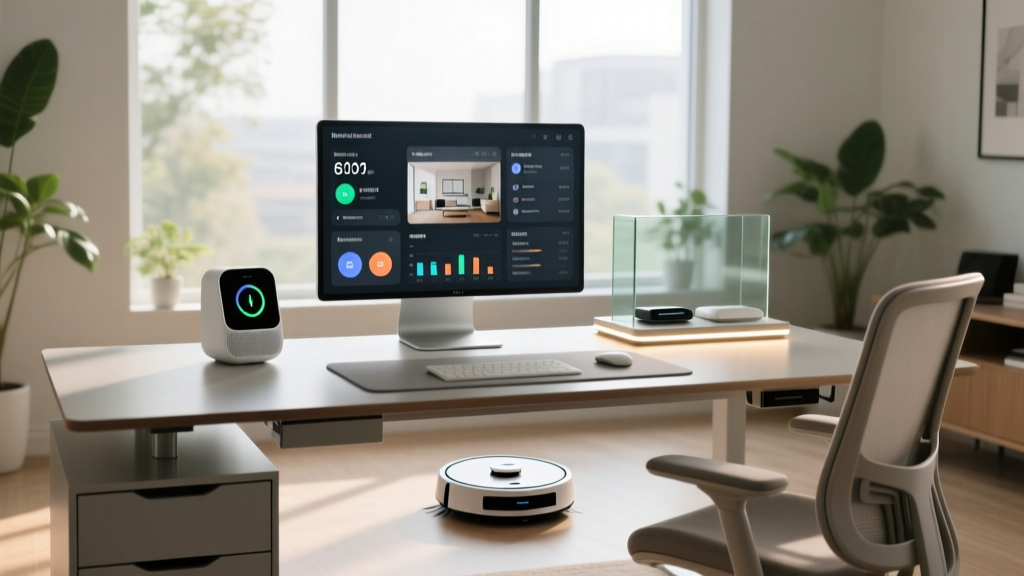
By strategically selecting and automating the best household gadgets, you can transform your home office into a responsive environment that anticipates your needs. In 2026, the maturation of the Matter 1.4 protocol and Thread mesh networking means that cross-brand automation is no longer a buggy compromise; it is a reliable, local-first reality. This tutorial will walk you through selecting the right hardware and building automated routines that adapt to your workday.
Selecting the Best Household Gadgets for Automation
To build a cohesive smart office, you need devices that support local processing and open standards. Relying solely on cloud-based Wi-Fi gadgets introduces latency and vulnerability to internet outages. Here are the top-tier, Thread-enabled, and Matter-compatible devices we recommend for a professional setup.
1. Smart Lighting: Philips Hue White and Color Ambiance
Lighting directly impacts circadian rhythms and focus. The Philips Hue White and Color Ambiance A19 bulbs (approximately $54.99 each) remain the gold standard due to their local Zigbee-to-Matter bridge integration. Unlike Wi-Fi bulbs that congest your router, the Hue Bridge handles up to 50 light sources locally, ensuring your 'Video Call' lighting scene triggers in under 200 milliseconds, even if your internet drops.
2. Climate Control: Ecobee SmartThermostat Premium
Stuffy air and temperature fluctuations lead to afternoon fatigue. The Ecobee SmartThermostat Premium ($249.99) includes a built-in air quality monitor and remote SmartSensors. By placing a sensor directly in your home office, you force the HVAC system to prioritize your workspace during working hours, rather than averaging the temperature of an empty living room.
3. Power Management: Eve Energy Smart Plugs
Phantom power draw from monitors, docking stations, and desk heaters adds up. The Eve Energy Smart Plug ($39.95) utilizes the Thread protocol. It not only allows for automated power cutoffs but also provides granular, real-time energy monitoring to help you track the exact cost of running your multi-monitor setup.
Step-by-Step Setup: Building the Ultimate Routine
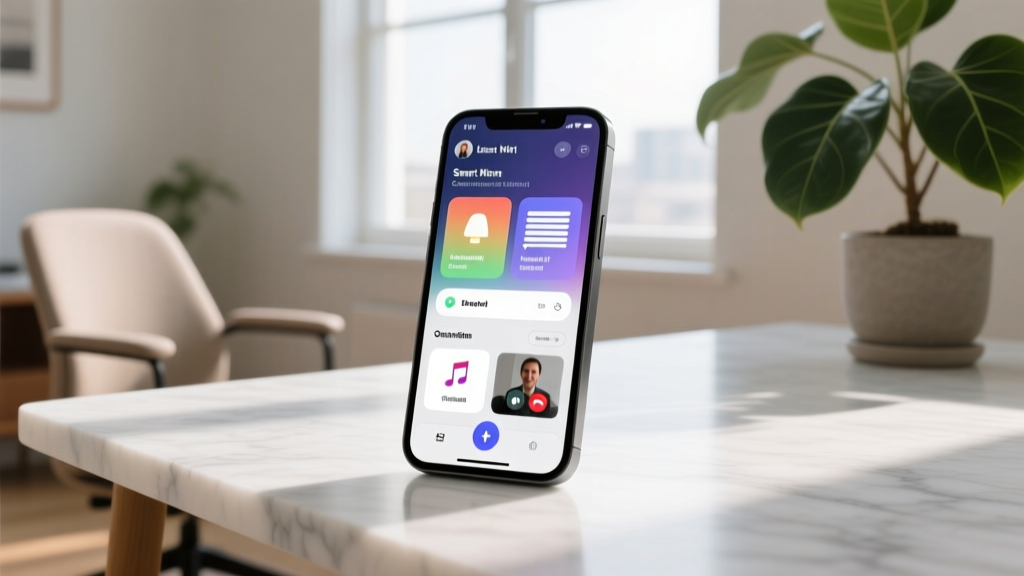
Hardware is only half the equation. The true value of the best household gadgets emerges when they operate in concert. We will use a centralized hub—such as the Homey Pro ($399) or an Apple TV 4K acting as a Thread Border Router—to unify these devices.
Step 1: Establish the Thread Mesh Network
Before creating routines, ensure your Thread network is robust. Thread relies on border routers to bridge the low-power mesh network to your IP network.
- Action: Plug your Eve Energy smart plugs into three different outlets around the perimeter of your home office. Because Thread devices act as repeaters, these plugs will strengthen the mesh signal for your Ecobee sensors and smart blinds.
- Pro Tip: Keep your Thread/Zigbee channels separated from your 2.4GHz Wi-Fi channel. Set your Wi-Fi router to channel 1, and your Hue Bridge to Zigbee channel 25 to prevent spectrum interference.
Step 2: Create the 'Deep Work' NFC Trigger
Instead of opening an app to start your workday, use a physical trigger.
- Write an NFC tag (costing less than $1) using your smartphone and stick it to the underside of your desk or on your monitor stand.
- In your smart home app, create an automation triggered by 'NFC Tag Scanned'.
- Actions: Set Hue lights to 5000K (cool white) at 80% brightness; set Ecobee to hold 71°F; turn on the Eve Energy plug connected to your secondary monitor and standing desk motor.
Expert Insight: Relying on geofencing (location-based triggers) to start your workday is a common mistake. GPS drift can trigger your 'Deep Work' routine while you are simply taking out the trash. Physical NFC triggers or local motion sensors combined with a time-window constraint are vastly more reliable for home office setups.
Step 3: The 'Video Call' Instant Scene
Bind a physical smart button (like the Philips Hue Dimmer Switch v2) to your desk. Program a single press to activate your video call scene: main overhead lights dim to 20%, a key light behind your monitor ramps to 100% to eliminate facial shadows, and your smart blinds close to prevent screen glare.
Gadget Automation Matrix: Triggers and Actions
Use this matrix as a blueprint for programming your own hub. This framework ensures your environment supports your biological and professional needs throughout the day.
| Time / Trigger | Lighting Action | Climate Action | Power / Peripheral Action |
|---|---|---|---|
| 8:00 AM (Auto) | Fade to 4000K (Daylight) 100% | Office Sensor Target: 72°F | Desk Heater Plug ON |
| NFC Tag Scan | Focus Scene (5000K, 80%) | Hold Current Temp | Monitors & Docking Station ON |
| Smart Button Press | Video Call Scene (Key light 100%) | Disable HVAC fan (reduce noise) | Smart Blinds CLOSE |
| 6:00 PM (Auto) | Fade to 2700K (Warm) 40% | Resume Whole-Home Eco Mode | Monitors & Desk Heater OFF |
Troubleshooting Matter and Thread Network Drops
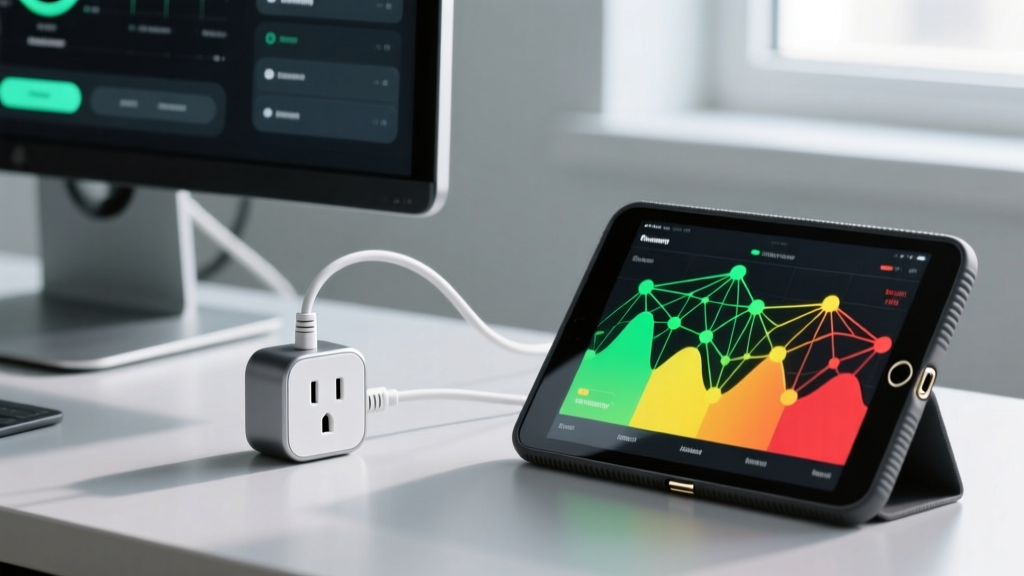
Even with the best household gadgets, network topology issues can cause delayed automations. If your smart plug fails to trigger when you scan your NFC tag, follow this diagnostic flow:
1. Check Border Router Status
Thread networks require a leader and border routers. If your Apple TV or HomePod is too far from the office, the mesh may fracture. Use a network scanner app to verify that your Thread border routers are showing an 'Active' status and are within 30 feet of your office gadgets through standard drywall.
2. Resolve Matter Binding Latency
Matter 1.4 introduced direct device-to-device binding, allowing a switch to control a bulb without polling the hub. If you experience latency, ensure both devices are on the same fabric and that your hub's firmware is fully updated to support direct Matter bindings. According to the Connectivity Standards Alliance, direct binding reduces command latency to under 50 milliseconds.
3. Local API Fallbacks
For critical lighting, always ensure your hub supports local API polling. As noted in the Philips Hue Official Support documentation, the Hue Bridge processes local LAN requests independently of cloud servers. If your automation platform relies on cloud webhooks for lighting, switch to local IP-based integrations to guarantee zero-latency execution during internet outages.
Frequently Asked Questions
Do I need a smart hub if my gadgets support Matter?
Yes. While Matter allows devices to communicate across different ecosystems (like Apple Home and Home Assistant), you still need a central controller or hub to execute time-based automations, run complex logic (like 'if motion AND time is between 9 AM and 5 PM'), and act as a Thread Border Router.
Can I use Wi-Fi smart plugs instead of Thread for my office?
You can, but it is not recommended for a dense gadget environment. A typical home office already has a laptop, dual monitors, smartphone, and wireless headset connected to Wi-Fi. Adding Wi-Fi smart plugs increases router overhead and latency. Thread and Zigbee keep low-power automation traffic off your primary IP network.
How do I prevent my smart lights from turning on at 3 AM?
This is usually caused by a router reboot. When your Wi-Fi router restarts, smart bulbs often lose their network connection and default to their 'Power Loss Recovery' state, which is usually 'ON'. Access your bulb manufacturer's settings and change the Power On Behavior to 'Last State' or 'Custom Dim Level' to prevent midnight glare. For more advanced network configurations, refer to Apple Developer Matter Documentation for optimizing Thread network stability.
Written by
Jake MorrisonJake Morrison holds a B.S. in Electrical Engineering from UC Berkeley and an MBA from Stanford Graduate School of Business. With over 12 years of hands-on experience in consumer electronics, he previously served as a senior product engineer at a Silicon Valley startup before transitioning to tech journalism. Jake has personally tested and benchmarked over 3,000 gadgets across categories including smartphones, wearables, smart home devices, and audio equipment. His durability testing methodology — involving controlled drop tests, thermal cycling, and water submersion — is widely cited by major tech publications. He is a certified CompTIA A+ technician and a contributing editor to the IEEE Consumer Electronics Magazine.