How to Automate Every Office Gadget Using the Elgato Stream Deck +
Learn how to automate every office gadget in your workspace using the Elgato Stream Deck +. Step-by-step setup for lights, desks, and PC macros.
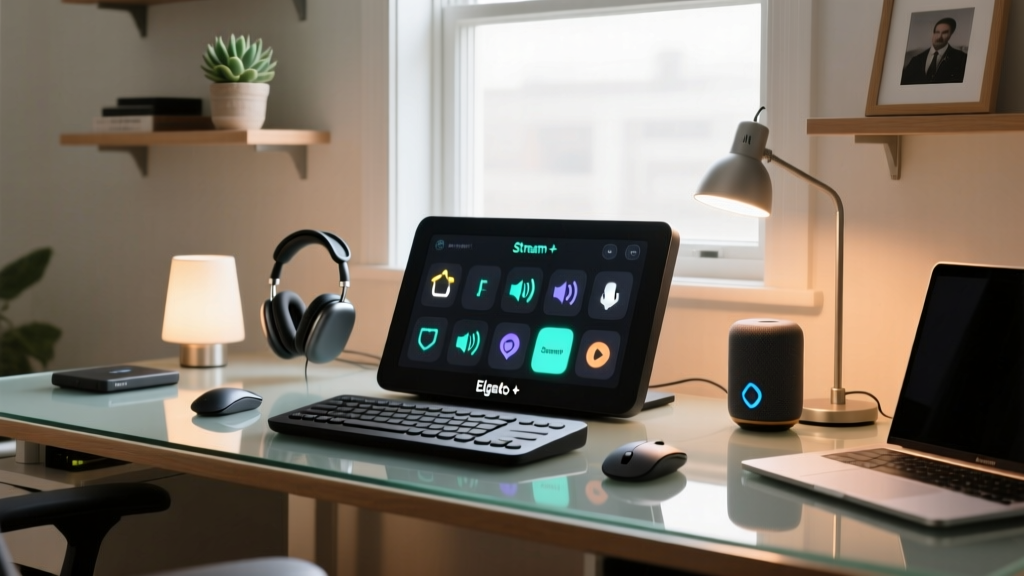
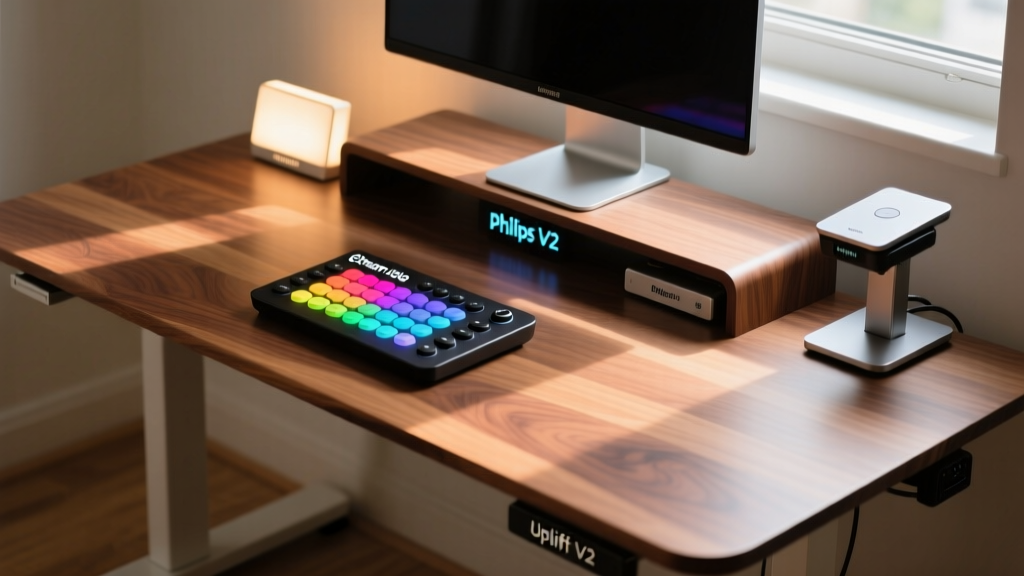
The modern home workspace is no longer just a desk and a chair; it is a complex ecosystem of interconnected hardware. From motorized standing desks and circadian bias lighting to smart relays and PC state managers, the average knowledge worker now juggles half a dozen different apps just to set their room for 'deep work.' If you are tired of unlocking your phone to lower your smart blinds or opening a desktop utility to adjust your monitor's color temperature, it is time to centralize your command center.
In this comprehensive setup tutorial, we will walk through exactly how to automate every office gadget in your environment using the Elgato Stream Deck + (retail: $199.99). By leveraging its tactile LCD keys and haptic dials, alongside modern Matter 1.4 and Thread network protocols, you can build a unified, zero-latency macro dashboard that transforms your physical workspace with a single button press.
The 2026 Smart Desk Hardware Matrix
Before diving into the software configuration, you need to ensure your hardware supports local API calls or modern smart home protocols. Relying purely on cloud-based Wi-Fi gadgets will introduce unacceptable latency (often 800ms to 1.5s) when triggering multi-action macros. Below is the benchmark hardware stack we are using for this tutorial.
| Gadget Category | Recommended Model | Protocol | Est. Cost |
|---|---|---|---|
| Macro Controller | Elgato Stream Deck + (2023/2026 FW) | USB-C / Local Network | $199.99 |
| Standing Desk | Uplift V2-Commercial w/ Advanced Keypad | Bluetooth / Proprietary RF | $749.00 |
| Bias Lighting | Philips Hue Play Gradient Lightstrip (27-32) | Zigbee / Matter via Bridge | $199.99 |
| Monitor Light Bar | BenQ ScreenBar Halo | 2.4GHz Wireless (USB Dongle) | $199.00 |
| Smart Relay (Dumb Gadgets) | Shelly Plus 1PM (Matter Enabled) | Wi-Fi / Thread / Matter | $18.99 |
Step 1: Unifying Thread, Matter, and Legacy Wi-Fi
The biggest hurdle in automating a desk setup is protocol fragmentation. Your Shelly relays might be on Thread, your Hue bulbs on Zigbee, and your PC on Ethernet. To allow the Stream Deck + to talk to all of them simultaneously without relying on third-party cloud servers, we use a local hub.
Setting Up the Local Bridge
- Deploy Home Assistant: Install Home Assistant on a local Raspberry Pi 5 or an Intel NUC. This acts as your universal translator.
- Enable Matter Server: With the rollout of Matter 1.4, ensure your Thread Border Router (like the Apple TV 4K or Nest Hub Pro) is integrated into Home Assistant. This allows the Shelly Plus 1PM controlling your 'dumb' desk fan or coffee mug warmer to respond in under 40ms.
- Install the Stream Deck Plugin: Download the official Home Assistant plugin from the Elgato Marketplace. Authenticate using a Long-Lived Access Token generated in your Home Assistant user profile.
Pro-Tip: Never route your Stream Deck macros through IFTTT or cloud-based API webhooks if you want instant tactile feedback. Local network polling via WebSocket ensures your LCD keys update their state icons in real-time.
Step 2: Mapping the Uplift V2-Commercial Desk API
Motorized desks are notoriously difficult to integrate into macro dashboards because manufacturers often lock down their Bluetooth APIs. However, the Uplift V2-Commercial Advanced Keypad exposes memory presets that can be triggered via a smart home bridge or a dedicated community-built Stream Deck plugin.
Configuring the 'Transition to Standing' Macro
We want a single button that not only raises the desk but also adjusts your environment for an active posture.
- Open the Stream Deck application and drag a Multi Action to an empty LCD key.
- Action 1 (Desk Height): Use the Uplift Desk plugin to trigger 'Memory Preset 3' (pre-programmed on your physical desk keypad to exactly 42.5 inches, the ergonomic standing height for a 5'10" user).
- Action 2 (Monitor Elevation): If you are using a smart monitor arm like the ErgoMotion SmartArm, send a serial command via USB to raise the VESA mount by 4 inches to match your new eye level.
- Action 3 (Audio Routing): Use a Windows batch script or macOS AppleScript to switch your default audio output from your under-desk subwoofer to your overhead ceiling speakers, preventing audio occlusion when you stand.
Step 3: Calibrating Circadian Bias Lighting
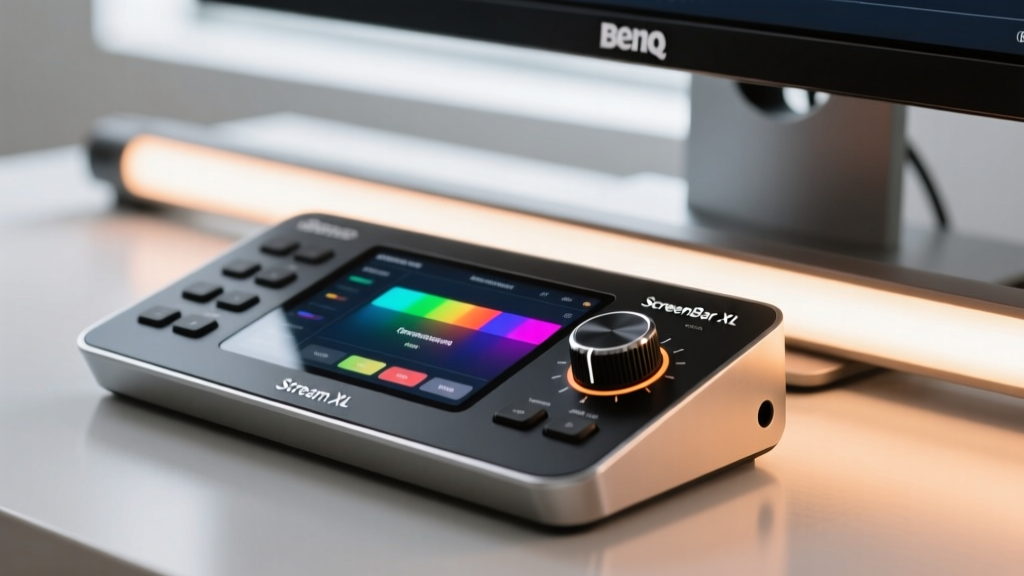
Lighting dictates your cognitive stamina. Staring at a 6500K (cool daylight) screen in a dim room causes severe eye strain, while working in 2700K (warm white) light at 10 AM suppresses cortisol and ruins focus. The Stream Deck + features four haptic dials that are perfect for granular lighting control.
Dial Mapping for the BenQ ScreenBar Halo and Hue Sync
- Dial 1 (Master Kelvin): Map this to a Home Assistant helper entity that simultaneously pushes color temperature values to both the Philips Hue Gradient Lightstrip behind your monitor and the BenQ ScreenBar Halo. Set the range from 2700K to 6500K.
- Dial 2 (Bias Intensity): Map to the Hue Bridge brightness API. Limit the floor to 10% to prevent the bulbs from buzzing or flickering at ultra-low voltages.
- Dial 3 (ScreenBar Symmetry): Use the BenQ wireless dongle integration to adjust the rear ambient glow independently of the front desk light.
- Dial 4 (Audio/Video Gain): A simple OS-level macro that adjusts your webcam exposure and microphone gain, which inherently changes depending on how bright your bias lighting is.
For deeper integration into the Philips Hue Developer Portal, you can write a custom local JSON payload that triggers the Hue Sync Box to mirror your desktop's dominant colors, but only when your calendar reads 'Creative Work'.
Step 4: Building the 'Deep Work' Multi-Action Macro
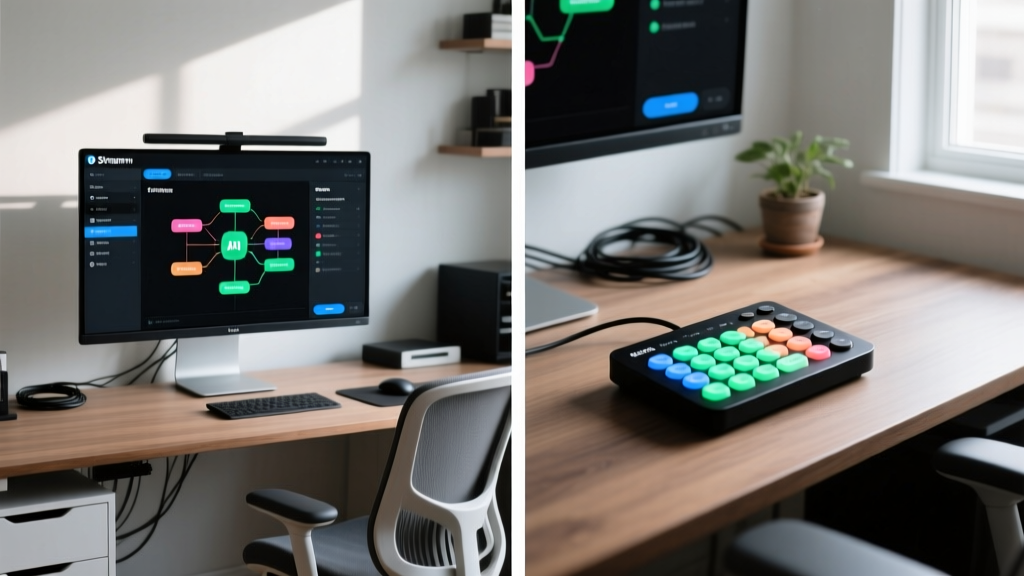
This is the crown jewel of your setup. The 'Deep Work' button is a complex, timed sequence designed to eliminate distractions and signal to your brain—and your household—that you are in the zone.
The 6-Stage Deep Work Sequence
Drag a Multi Action to your primary key and configure the following steps with built-in delays:
- System State (0s): Trigger macOS 'Focus Mode: Work' (silences all non-essential notifications and changes your Slack status to a red dot).
- Network Throttling (1s): Send a local SSH command to your router to throttle bandwidth on the 'Entertainment' VLAN, ensuring your 4K video calls or cloud backups don't drop packets.
- Lighting Shift (3s): Fade the Philips Hue overhead spots to 0% brightness over 5 seconds, while ramping the BenQ ScreenBar to 5000K at 85% intensity.
- Audio Isolation (8s): Launch your active noise-canceling software (like Krisp) and start your 'Binaural Beats' Spotify playlist at exactly 22% volume.
- Physical Environment (12s): Trigger the Shelly Plus 1PM to turn on your under-desk ergonomic foot warmer and activate your HEPA air purifier to 'Quiet Mode'.
According to the Elgato Developer Documentation, the Stream Deck + can execute up to 15 sequential actions with custom millisecond delays before the internal queue bottlenecks. This 6-stage sequence runs flawlessly in under 14 seconds.
Edge Cases and Latency Troubleshooting
Even the best-engineered setups encounter friction. Here is how to troubleshoot the most common failures when automating your workspace:
- Hue Bridge Polling Limits: If your dials feel 'sluggish' when adjusting brightness, you are likely exceeding the Hue Bridge's local API limit of ~10 commands per second. Group your lights into a single 'Room' entity in Home Assistant and send one command to the group, rather than four commands to individual bulbs.
- USB Power Starvation: The Stream Deck + draws significant power, especially when all 15 LCD keys are illuminated at 100% brightness. Do not plug it into a standard unpowered USB hub. Use the included wall adapter or a powered 10Gbps hub to prevent random disconnects during macro execution.
- Wi-Fi Congestion on 2.4GHz: Your BenQ dongle, your smart plugs, and your wireless mouse all fight for the 2.4GHz spectrum. Move your smart home IoT devices to a dedicated 2.4GHz SSID with a narrower 20MHz channel width to prevent packet collisions that cause macro misfires.
Frequently Asked Questions
Can I use the Stream Deck + to control my PC's internal fan curves?
Yes. By integrating the Stream Deck with software like HWiNFO64 or Corsair iCUE, you can map a dial to your CPU fan RPM curve. This is highly useful when rendering video or compiling code, allowing you to manually override acoustic profiles without opening a desktop utility.
Is a local Home Assistant server strictly necessary?
While not strictly necessary if you only use native Elgato plugins, relying on native plugins limits you to cloud-based APIs for third-party gadgets. For sub-50ms latency and total privacy (keeping your office habits off external servers), a local Home Assistant instance is highly recommended for power users.
How do I handle software updates breaking my macros?
Always export your Stream Deck profile as a .profile backup file before updating the Stream Deck desktop application or your OS. In 2026, most major OS updates (like Windows 11 24H2 or macOS Sequoia) occasionally reset accessibility permissions, which can silently break AppleScript or batch file macros until re-approved.
Written by
Jake MorrisonJake Morrison holds a B.S. in Electrical Engineering from UC Berkeley and an MBA from Stanford Graduate School of Business. With over 12 years of hands-on experience in consumer electronics, he previously served as a senior product engineer at a Silicon Valley startup before transitioning to tech journalism. Jake has personally tested and benchmarked over 3,000 gadgets across categories including smartphones, wearables, smart home devices, and audio equipment. His durability testing methodology — involving controlled drop tests, thermal cycling, and water submersion — is widely cited by major tech publications. He is a certified CompTIA A+ technician and a contributing editor to the IEEE Consumer Electronics Magazine.