How to Setup the Most Useful Gadget for International Travelers
Learn how to configure, secure, and optimize eSIM portable hotspots—the most useful gadget for international travelers—with our step-by-step setup guide.
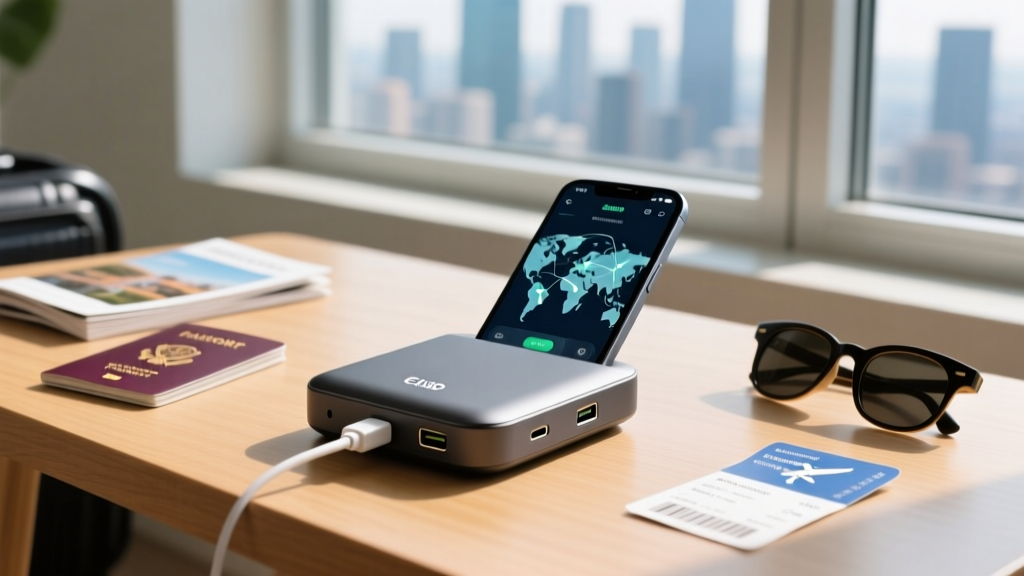
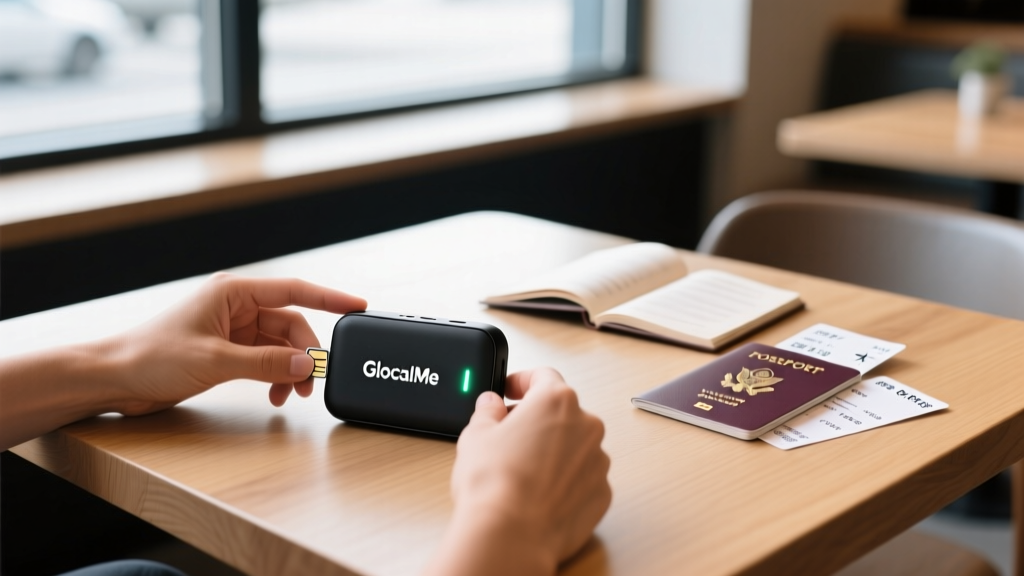
Border crossings and exorbitant roaming fees are the twin bottlenecks of global mobility. While swapping physical SIM cards at airport kiosks is a familiar ritual, it exposes you to lost micro-SIMs, locked devices, and predatory tourist data rates. The definitive solution is a dedicated CloudSIM or eSIM-enabled portable hotspot. When properly configured, this hardware serves as the single most useful gadget for international travelers, providing instant, secure, multi-device connectivity the moment your flight touches down.
This tutorial bypasses basic unboxing and dives straight into the advanced setup, network provisioning, and power optimization required to turn a portable eSIM router into a bulletproof travel companion.
Hardware Showdown: Selecting Your CloudSIM Router
Not all travel hotspots utilize the same radio bands or battery architectures. CloudSIM technology allows the device to dynamically download local carrier profiles over the air without a physical SIM tray. Below is a technical comparison of the current market leaders.
| Feature | GlocalMe G4 Pro | Solis Lite | RoamWiFi R10 |
|---|---|---|---|
| Average Price | $169 | $140 | $120 |
| Battery Capacity | 3900 mAh | 4700 mAh | 3500 mAh |
| Wi-Fi Broadcast | Dual-Band (2.4/5GHz) | Single-Band (2.4GHz) | Single-Band (2.4GHz) |
| Physical SIM Slot | Dual Nano-SIM | None | Dual Nano-SIM |
| Power Bank Function | No | Yes (5V/1A out) | No |
Step-by-Step Setup: Provisioning Your Global Hotspot
Out of the box, these devices are often set to generic factory defaults that prioritize manufacturer data sales over network efficiency. Follow these steps to optimize your device before you leave home.
Step 1: Firmware and Account Sync
Connect the hotspot to your home Wi-Fi network via its admin panel (typically accessed via 192.168.0.1 or 192.168.100.1 in your mobile browser). Navigate to Settings > Device Update. CloudSIM routing tables are frequently updated to include new regional roaming partners. Ensure the firmware is on the latest build. Next, link the device’s IMEI to your account on the manufacturer's mobile app to enable remote data top-ups.
Step 2: Purchasing and Activating Data Packages
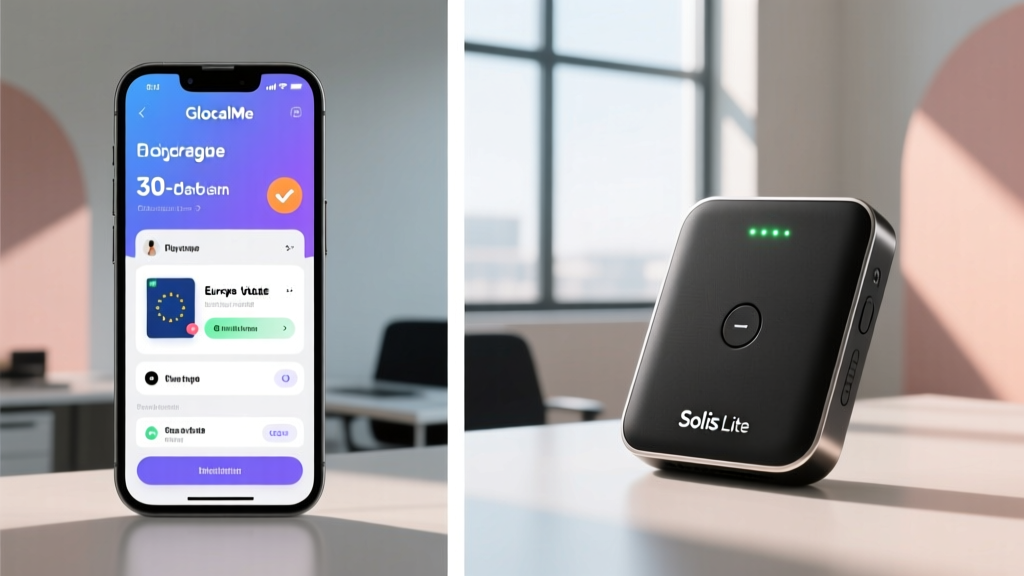
Avoid the "Pay-As-You-Go" default rates, which often hover around $7.50 per GB. Instead, purchase regional packages via the companion app. For example, a 30-day Europe pass covering 35 countries on the GlocalMe network typically costs $45 for 15GB, dropping the effective rate to $3.00/GB. Activate the package 12 hours before your flight to allow the CloudSIM server to push the initial carrier profile to your device's secure element.
Step 3: APN Configuration and Network Locking
This is where most travelers experience connectivity failures. When the device lands, it may connect to a local partner network (e.g., Vodafone in Spain or Softbank in Japan) but fail to pass data because the Access Point Name (APN) is mismatched.
- Access the admin panel on your phone while connected to the hotspot's Wi-Fi.
- Navigate to Network Settings > APN.
- If data is failing, create a new APN profile. In 90% of global roaming scenarios, setting the APN string to
internetorwebwill force the local carrier's gateway to authenticate your session. - Save and reboot the device.
⚠️ Troubleshooting: The Border Crossing Failure Mode
When crossing land borders (e.g., taking a train from France to Switzerland), the hotspot will often "cling" to the weak signal of the previous country's roaming partner rather than handing off to the new local network. If your internet drops at a border, do not just wait. Log into the admin panel, navigate to Network Selection, switch from "Auto" to "Manual", and force the device to scan and register on the strongest local network. Once registered, you can switch back to "Auto".
Power Management and Battery Optimization
Battery drain is the primary failure point for portable hotspots on long-haul flights or multi-day treks. The radio modem consumes the most power when aggressively searching for cell towers in low-signal areas.
- Wi-Fi Band Selection: If your device supports dual-band Wi-Fi (like the G4 Pro), broadcast on the 2.4GHz band instead of 5GHz when battery life is critical. 5GHz offers faster local transfer speeds but drains the battery approximately 22% faster due to higher power amplifier requirements.
- Wi-Fi Sleep Mode: Enable the "Wi-Fi Sleep" feature in the admin panel. This turns off the Wi-Fi broadcast if no connected devices request data for 10 minutes, keeping the 4G/LTE modem in a low-power idle state.
- Thermal Throttling: Never leave the hotspot in direct sunlight or inside a closed car. When the internal battery exceeds 40°C (104°F), the device will throttle the modem's transmit power to prevent swelling, resulting in severe signal degradation.
Security: Locking Down Your Travel Network
Public spaces like airport lounges and train stations are prime environments for packet sniffing. Treat your portable hotspot with the same security rigor as a home router.
- Change the Admin Password: The default admin login is almost universally
admin/adminoradmin/12345678. Change this immediately in the admin panel to prevent nearby malicious actors from altering your APN or DNS settings. - Enforce WPA3 or WPA2-AES: Ensure your Wi-Fi security protocol is set to WPA2-AES (or WPA3 if supported). Never use TKIP or WEP, which can be cracked in minutes using basic smartphone apps.
- Disable WPS: Wi-Fi Protected Setup (WPS) is a known vulnerability. Disable it entirely in the wireless settings menu.
- Hide the SSID (Optional): If you are traveling through high-risk areas, hiding your network's SSID prevents it from appearing in the Wi-Fi menus of nearby devices, reducing the likelihood of targeted de-authentication attacks.
Regulatory and Compliance Considerations
While CloudSIM technology is legal globally, local telecommunications authorities have varying rules regarding IMEI registration. According to the FCC guidelines on international roaming, devices must comply with local radio frequency emissions standards. Furthermore, countries like Turkey and Indonesia require IMEI registration for any cellular device operating on their networks for more than 90 to 120 days. Because your hotspot utilizes a dynamic CloudSIM rather than a permanently registered local SIM, it generally bypasses short-term tourist IMEI blocks, but long-term expats should consult the U.S. Department of State Smart Traveler resources for specific country telecom regulations.
Additionally, the GSMA eSIM specifications dictate how profiles are downloaded and secured. Understanding that your device relies on GSMA-compliant remote SIM provisioning helps explain why initial network registration can sometimes take up to 3 minutes upon landing—the secure element is actively negotiating encryption keys with the local carrier's SM-DP+ server.
Frequently Asked Questions
Can I use my own local SIM card in these devices?
Yes, provided the model has a physical Nano-SIM slot (like the GlocalMe G4 Pro or RoamWiFi R10). When a physical SIM is inserted, the device's firmware prioritizes the physical SIM over the CloudSIM. This is highly useful if you purchase a cheap, high-capacity local data SIM upon arrival at your destination.
Why is my latency so high on a CloudSIM device?
CloudSIM routing often relies on regional aggregation servers. Your traffic may be routed from a local tower in Thailand back to an aggregation hub in Singapore before hitting the public internet. This adds 40-80ms of latency. For general browsing and streaming, this is imperceptible, but it makes competitive mobile gaming or high-frequency trading impossible on these networks.
Written by
Tom ReynoldsTom Reynolds holds a CFA (Chartered Financial Analyst) designation and a B.S. in Finance from the University of Texas at Austin. Before entering tech journalism, he spent 6 years as a quantitative analyst at a hedge fund, building cost-benefit models for consumer product investments. Tom has maintained a proprietary database of over 10,000 tech deals for the past 8 years, developing his signature "penny-per-feature" evaluation framework that calculates the true value proposition of every gadget. His budget gadget reviews are known for their financial rigor — he tracks price history across 15+ retailers, calculates cost-per-use over 3-year lifespans, and identifies the exact inflection point where premium features justify their markup. Tom's deal alerts have saved his readers an estimated .3 million since 2018.