Cool Gaming Gadgets That Solve Common Desk Setup Problems (2026)
Discover cool gaming gadgets that actually solve desk ergonomics, cable clutter, and eye strain in your anime and gaming setup. Practical 2026 picks.
The RGB Trap: Why Most Desk Accessories Fail
Walk into any electronics store or browse online marketplaces, and you will find thousands of so-called cool gaming gadgets. The vast majority are RGB-laden paperweights that look great on a showroom floor but fail to address the actual physical and technical friction points of a daily gaming or anime-binging setup. A glowing mousepad does not fix carpal tunnel, and a neon desk mat does not reduce the eye strain caused by a 4K monitor in a dark room.
To build a sustainable, high-performance command center for 2026, you need to shift your purchasing criteria from aesthetic novelty to functional problem-solving. Below is a breakdown of the most common desk setup failures and the specific, data-backed gadgets that actually fix them.
Problem 1: Ulnar Deviation and Wrist Fatigue During Long Sessions
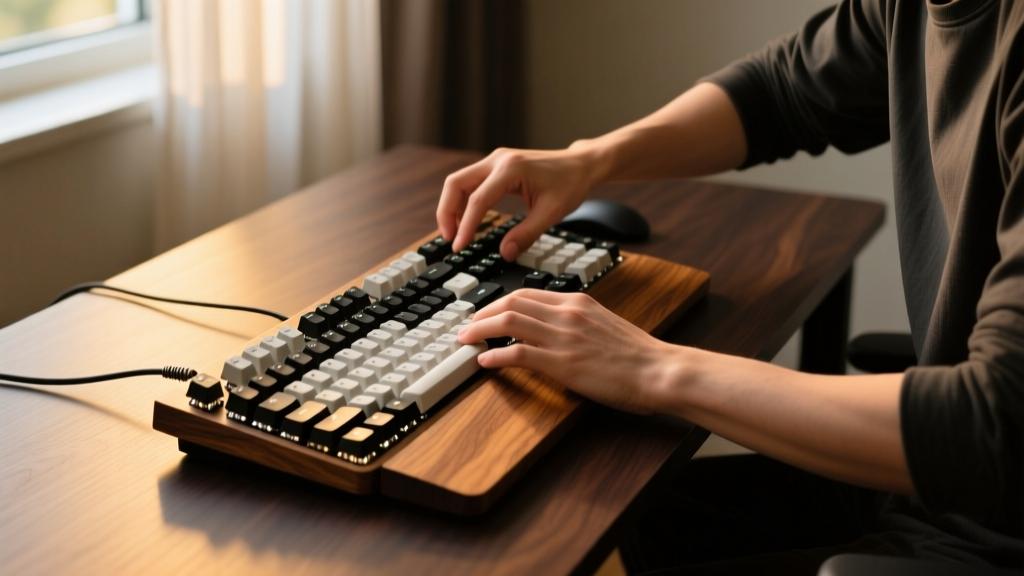
Standard straight keyboards force your wrists into ulnar deviation—an outward bend that compresses the carpal tunnel. When you are grinding through a 60-hour JRPG or executing precise macro sequences in an MMO, this static posture leads to severe fatigue and long-term nerve damage.
The Fix: Keychron Q11 Split Mechanical Keyboard
Rather than buying a generic gel pad, the structural solution is a split chassis. The Keychron Q11 (retailing around $209) physically separates the left and right key clusters, allowing you to position each half at a natural shoulder-width angle.
- Chassis Weight: 2.2 lbs per half (CNC aluminum), preventing sliding during aggressive inputs.
- Typing Angle: 7.5 degrees with the included feet, which aligns the forearm and wrist without requiring a separate padded rest.
- Switch Compatibility: Hot-swappable 5-pin PCB, allowing you to install light linear switches (like Gateron Milky Yellows) to reduce the actuation force required for WASD movement.
Problem 2: Pupil Dilation Strain from High-Contrast Displays
Watching a dark, atmospheric anime like Vinland Saga or playing a horror game on a 32-inch OLED monitor in a pitch-black room forces your pupils to constantly dilate and constrict as bright flashes hit the screen. This high-contrast environment is a primary trigger for computer vision syndrome. As noted by the Mayo Clinic, prolonged screen use in poor lighting drastically accelerates eye fatigue, dryness, and blurred vision.
The Fix: Govee DreamView Sync Box and Light Strip Kit
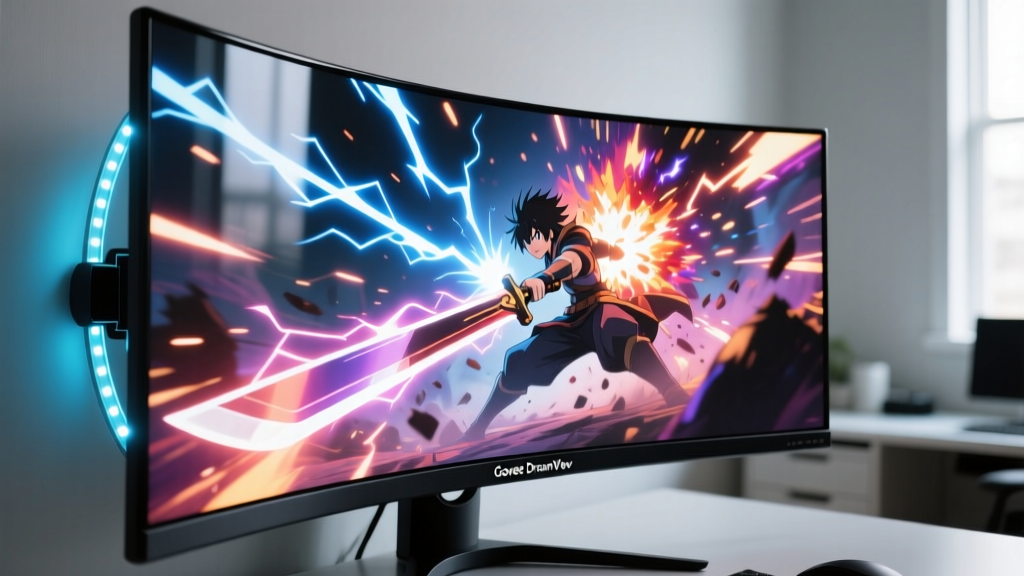
Bias lighting—placing a light source behind the monitor to illuminate the wall—equalizes the ambient brightness, keeping your pupils at a stable diameter. The Govee DreamView 32-inch Kit ($129) solves the specific problem of latency and color inaccuracy found in cheaper strips.
- Sync Latency: Under 2 milliseconds via the HDMI 2.1 sync box, ensuring the backlight matches fast-paced anime action sequences without visual lag.
- Color Temperature Range: 2700K to 6500K. For late-night sessions, you can manually lock the bias light to a warm 3000K to minimize blue light exposure, which Harvard Health identifies as a major disruptor of circadian rhythms and melatonin production.
- CRI (Color Rendering Index): 90+, meaning the light accurately reflects the colors on your screen rather than washing them out with a green or magenta tint.
Problem 3: The 'Spaghetti' Cable Management Nightmare
Thick, braided power cables and HDMI 2.1 cords create massive tension on the back of your monitor and PC. This tension can bend motherboard IO shields, damage GPU ports, and make cleaning your desk a frustrating ordeal. Zip-tying cables together into a single thick bundle is a rookie mistake that traps heat and makes swapping a single peripheral impossible.
The Fix: Modular Sleeving and Magnetic Under-Desk Trays
Effective cable management requires separating high-voltage power lines from low-voltage data lines to prevent electromagnetic interference (EMI), which can cause micro-stutters in high-polling-rate mice.
| Gadget / Tool | Cost | Capacity / Spec | Best Use Case |
|---|---|---|---|
| JOTO Cable Sleeves (10ft) | $12 | 3/4 inch diameter | Grouping 3-4 data cables (USB, DisplayPort) together neatly. |
| Eveo Under Desk Mesh Net | $29 | 31 x 6 inches | Holding heavy power bricks and surge protectors off the floor. |
| Cable Drops (Adhesive) | $9 (6-pack) | Single cable grip | Securing mouse and headset cables to the desk edge for zero drag. |
Install the Eveo mesh tray directly beneath your monitor arm mount. Route your PC power cable through the left side of the tray, and your monitor/peripheral cables through the right side. Use the JOTO sleeves only for the final 18 inches where cables drop from the desk to the floor.
Problem 4: Thermal Throttling in Enclosed Anime Display Shelves
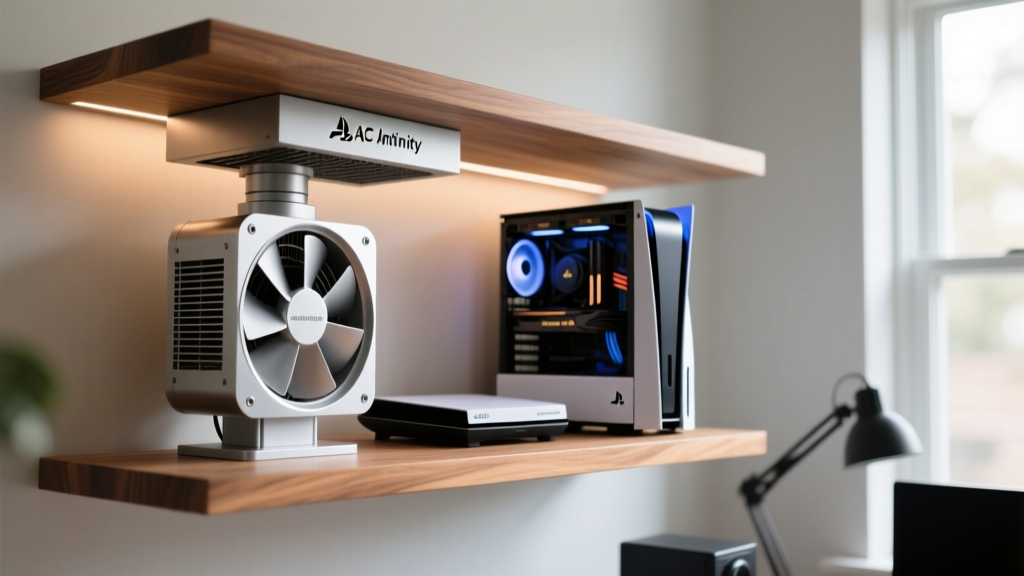
Many collectors integrate their PS5 Pro, Xbox Series X, or high-end PC towers into enclosed IKEA Kallax or custom wooden anime display shelves to save space and hide ugly black metal boxes. The problem? Enclosed spaces destroy airflow. A PS5 exhausts air at roughly 45°C (113°F) under load. In a closed shelf, ambient temperatures quickly exceed 50°C, forcing the console's APU to thermal throttle, resulting in dropped frame rates and loud, whining fan noise.
The Fix: AC Infinity CLOUDPLATE T8 Exhaust System
Do not rely on cheap, USB-powered desk fans blowing air into the shelf; this just circulates hot air. You need active negative pressure to extract the heat.
The AC Infinity CLOUDPLATE T8 ($49) features dual 120mm PWM (Pulse Width Modulation) fans designed specifically for AV and enclosure exhaust.
- Airflow: 52 CFM (Cubic Feet per Minute), enough to completely cycle the air in a standard 2-cube shelf every 45 seconds.
- Noise Level: 25 dBA at maximum speed, which is virtually inaudible over game audio or anime dialogue.
- Smart Controller: Includes a programmable thermal probe. You can set the fans to remain off until the shelf interior hits 35°C, then automatically ramp up to 100% speed at 42°C.
Mount the CLOUDPLATE on the ceiling of the shelf compartment, blowing upward or outward toward the room. Ensure there is at least a 2-inch gap at the bottom of the shelf or behind the console to allow cool room air to be drawn in.
Quick-Reference Decision Matrix: Where Should You Invest?
If your budget is limited, prioritize your purchases based on the physical toll they prevent. Use this matrix to decide which cool gaming gadgets offer the highest return on investment for your specific setup.
Priority 1: Health and Ergonomics (Fix First)
Invest in: Split keyboards, monitor arms (to raise the screen to eye level), and bias lighting. These directly prevent repetitive strain injuries and chronic eye fatigue. The cost of a $200 keyboard is negligible compared to physical therapy.
Priority 2: Hardware Longevity (Fix Second)
Invest in: Active exhaust fans for enclosed shelves, high-quality surge protectors with EMI filtering, and proper cable strain relief. These protect your $500+ consoles and $1,500 GPUs from thermal degradation and power spikes.
Priority 3: Aesthetics and Flow (Fix Last)
Invest in: Cable sleeves, custom desk mats, and smart sync lighting. These make the setup look incredible and feel satisfying to use, but they will not save your wrists or your hardware if the foundational ergonomics are flawed.
Building a top-tier anime and gaming environment in 2026 is less about buying the brightest RGB accessories and more about engineering a space that supports your body and your hardware. By targeting specific friction points with purpose-built gadgets, you transform your desk from a cluttered gaming station into a highly optimized, sustainable command center.
Written by
Ryan TanakaRyan Tanaka holds a B.S. in Mechanical Engineering from Oregon State University and is a certified AWS Solutions Architect. He has built over 80 custom electronics projects ranging from CNC machines to IoT sensor networks, and has reviewed development boards, 3D printers, soldering equipment, and maker tools for the past 6 years. Ryan is an active contributor to 12 open-source hardware projects on GitHub and teaches monthly workshops at three hackerspaces across the Pacific Northwest. His reviews combine engineering rigor with accessibility — he evaluates products not just on specs but on documentation quality, community support, and learning curve for beginners. He has presented at Maker Faire Bay Area, Open Hardware Summit, and the Adafruit community showcase, and maintains a popular blog documenting his build processes.