Beyond the Basics: 5 Best Gadgets for Home Office Upgrades in 2026
Discover the best gadgets for home office upgrades in 2026. We review unique, high-ROI desk tools like the reMarkable Paper Pro and Stream Deck Neo.
The Shift from Ergonomic to Cognitive Workspaces
Upgrading a home office in 2026 requires looking past the baseline. While a reliable mechanical keyboard and a 4K webcam are now standard expectations, the frontier of workspace optimization has shifted toward cognitive ergonomics. According to research principles outlined by Cornell University Ergonomics, minimizing micro-frictions and visual fatigue directly correlates with sustained deep-work capacity. The standard setup is dead; the modern desk must actively manage attention, lighting, and physical momentum.
Finding the best gadgets for home office environments is no longer about buying the most expensive laptop stand. It is about integrating tools that solve specific failure modes in your daily workflow—whether that is browser-tab fatigue, cold coffee breaking your focus, or poor monitor lighting causing sub-clinical eye strain. Below, we break down five highly specific, unconventional desk upgrades that deliver measurable returns on investment.
5 Unconventional Picks for the Best Gadgets for Home Office Environments
1. reMarkable Paper Pro: The Distraction Killer
The iPad Pro is a phenomenal consumption device, but its emissive OLED screen and constant push notifications make it a liability for deep, uninterrupted thought. The reMarkable Paper Pro ($599 base / $629 with Folio) utilizes an 11.8-inch color E Ink Canvas display with a 12-millisecond latency rate. It is engineered exclusively for reading, annotating, and handwriting.
- Display: 1620 x 2160 resolution (229 PPI) with adjustable front-light.
- Battery Life: Up to 2 weeks of active use; charges via USB-C (0-100% in ~2 hours).
- Failure Mode: The included 'Marker Plus' uses a standard nib that feels slightly slippery on the textured screen. Heavy users should purchase the $29 'Felt' nibs for paper-like friction, but be aware that felt nibs degrade every 2-3 months with daily use.
2. Elgato Stream Deck Neo: The Macro Commander
Do not let the 'Stream' branding fool you. The Stream Deck Neo ($99) is arguably the most powerful productivity macro pad on the market. Featuring 8 customizable LCD keys and a dedicated touch strip, it interfaces directly with the Elgato Marketplace to execute complex, multi-step desktop commands.

Real-World Application: Instead of manually opening your daily workflow, program Button 1 to simultaneously launch your Notion daily dashboard, open your specific Slack workspace, and start a 50-minute Pomodoro timer via a desktop widget. The touch strip can be mapped to control system volume, zoom levels in Figma, or timeline scrubbing in Premiere Pro. It physically offloads cognitive load by turning repetitive digital sequences into single tactile actions.
3. BenQ ScreenBar Halo: The Lighting Architect
Overhead room lighting causes screen glare, while cheap $30 LED desk lamps create harsh shadows and wash out monitor contrast. The BenQ ScreenBar Halo ($199) solves this through an asymmetric optical design that projects 1000 lux of light onto your desk without casting a single lumen onto the monitor panel itself.
As highlighted in comprehensive monitor lighting evaluations by Wirecutter, the Halo distinguishes itself with a 2.4GHz wireless puck controller and a rear-facing ambient light that reduces the perceived contrast ratio between a bright screen and a dark room, significantly reducing pupillary strain. Installation caveat: The weighted gravity clamp requires at least 1.2 inches of flat bezel depth on your monitor. If you use a curved ultrawide or a bezel-less display, you must purchase the separate $20 VESA mount adapter to secure it properly.
4. Ember² Smart Mug: The Temperature Anchor
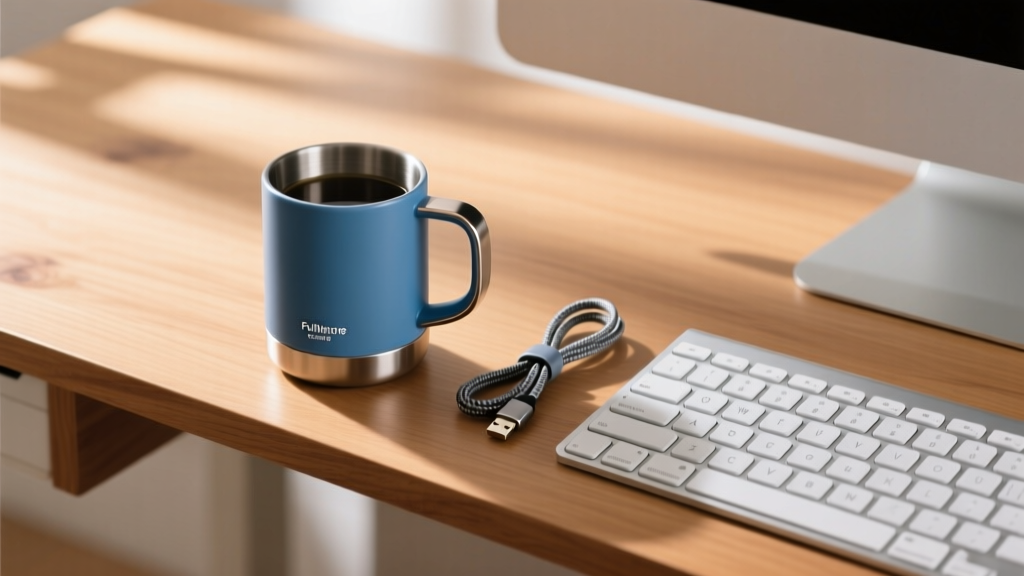
The psychological anchor of a warm beverage degrades rapidly when coffee drops below 130°F. The Ember² Smart Mug ($129 for the 10oz model) uses dual phase-change materials and a microprocessor-controlled heating element to hold your liquid at an exact temperature (adjustable between 120°F and 145°F) for up to 1.5 hours off the charging coaster, or indefinitely when seated on it.
Pro-Tip: Pre-heat the ceramic-coated stainless steel interior with boiling water for 60 seconds before brewing your coffee. This prevents the mug's thermal mass from instantly robbing heat from your fresh pour, allowing the battery to maintain the target temperature much more efficiently.
5. Grovemade Walnut Desk Shelf: The Acoustic Anchor
Monitor risers are usually made of hollow plastic or thin aluminum, which act as resonance chambers that amplify the clack of mechanical keyboards and the hum of PC fans. The Grovemade Walnut Desk Shelf ($180) is milled from solid Eastern Black Walnut. Its sheer mass (over 6 lbs) naturally dampens acoustic vibrations.
Raising your monitor by exactly 4.25 inches aligns the top bezel with the average seated eye level (adhering to OSHA ergonomic guidelines for neutral neck posture), while the space underneath perfectly conceals a Stream Deck, an Ember coaster, and a hub, keeping the visual field entirely free of clutter.
Decision Matrix: Match the Gadget to Your Workflow
Not every desk needs every tool. Use this matrix to identify which unique gadget solves your specific bottleneck.
| Gadget | Primary Benefit | Ideal User Profile | Price Point |
|---|---|---|---|
| reMarkable Paper Pro | Eliminates digital distractions; deep focus. | Writers, researchers, legal professionals. | $599+ |
| Stream Deck Neo | Automates repetitive digital sequences. | Data analysts, video editors, coders. | $99 |
| BenQ ScreenBar Halo | Reduces eye strain via asymmetric lighting. | Night-shift workers, CAD designers, readers. | $199 |
| Ember² Smart Mug | Maintains beverage temp for sustained comfort. | Slow sippers, long-meeting attendees. | $129 |
| Grovemade Shelf | Acoustic dampening and monitor alignment. | Mechanical keyboard users, minimalists. | $180 |
Advanced Cable Management for Heavy Desk Loadouts
Integrating unique, high-end gadgets often means dealing with proprietary power bricks and thick braided cables. Standard adhesive cable clips will fail under the weight of a 140W GaN charger. Implement this heavy-duty routing strategy:
- Ditch the Zip Ties: Use Velcro-brand ONE-WRAP ties (the dual-sided hook and loop type). They allow you to add or remove a single cable from a bundle without cutting and replacing a zip tie.
- Mount Power Bricks with 3M Dual Lock: Adhesive foam tape degrades with heat. Use 3M Dual Lock (TB3550) reclosable fasteners to stick heavy power bricks directly to the underside of your desk. This keeps them off the floor and allows you to detach them for travel without leaving residue.
- Use J-Channel Raceways: For the main trunk line running from your PC to your monitor arm, use a 1.5-inch screw-mounted J-Channel raceway. Route the thick video and power cables through the channel, and use the Velcro ties to secure the thinner USB data lines to the outside of the channel for easy access.
Frequently Asked Questions
Is the reMarkable Paper Pro worth the upgrade from the reMarkable 2?
If your workflow involves reviewing color-coded charts, anatomical diagrams, or highlighted PDFs, the Paper Pro's color E Ink Canvas is a massive leap. However, if you exclusively take black-and-white text notes, the older reMarkable 2 (often found refurbished for under $300) remains perfectly adequate and offers a slightly thinner profile.
Can the Stream Deck Neo work without an active internet connection?
Yes. While the initial setup and plugin downloads require the Elgato Marketplace, the macro profiles are saved locally to the device's onboard memory. Once configured, it will execute local desktop shortcuts, launch offline applications, and trigger system commands without needing to ping a cloud server.
How do I clean the BenQ ScreenBar Halo without damaging the optics?
Never use glass cleaner or alcohol-based wipes on the asymmetric lens, as this will strip the anti-glare coating. Use a dry, clean microfiber cloth (like those used for camera lenses) to gently wipe away dust. For smudges, slightly dampen the cloth with distilled water only.
Written by
David OkaforDavid Okafor is an ASE (Automotive Service Excellence) Master Certified Technician with 15 years of professional experience in vehicle diagnostics, aftermarket electronics installation, and fleet management. He holds an Associate Degree in Automotive Technology from Universal Technical Institute and certifications in mobile electronics (MECP Certified Installer). David has installed and reviewed over 800 car tech products — from OBD2 scanners and dash cams to full infotainment system retrofits — in vehicles ranging from economy compacts to luxury SUVs. His popular YouTube channel "AutoTech David" has over 150,000 subscribers and features detailed installation tutorials and product teardowns. He is a regular contributor to the SEMA Show's aftermarket technology showcase and advises two automotive tech startups on product development.