Budget USB-C Hubs 2026: Why Pocket Gadgets Titanium Builds Fail
Discover the best budget USB-C hubs for 2026. Learn why you should skip overpriced titanium builds and opt for these high-performance aluminum adapters.
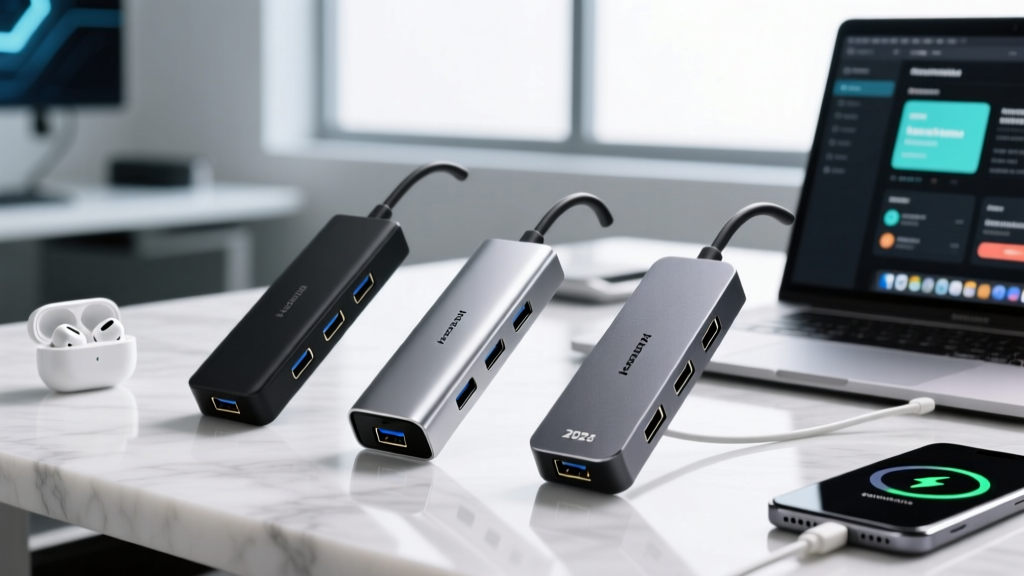
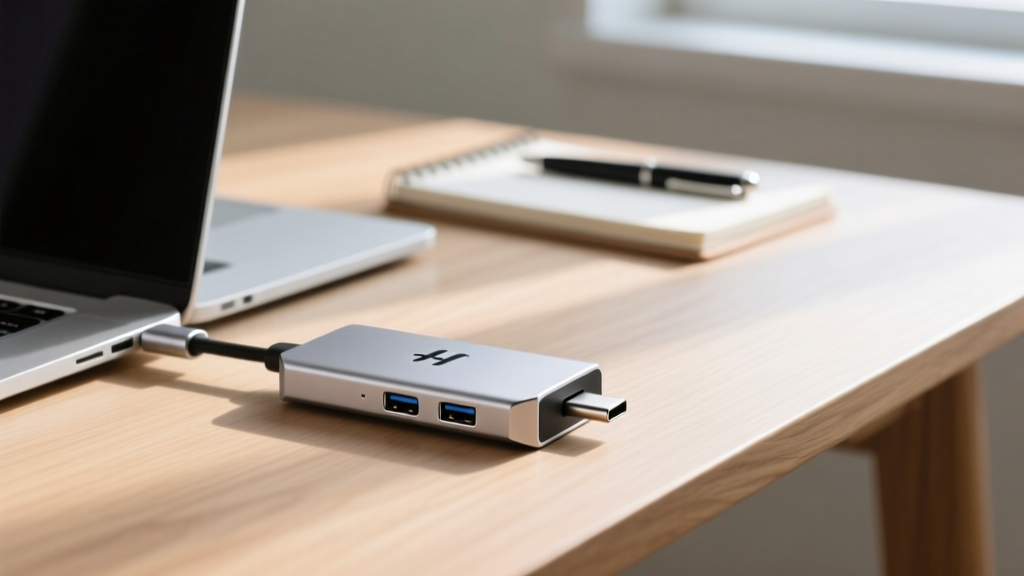
In the ever-evolving landscape of laptop accessories, the market has recently been flooded with ultra-premium, hyper-expensive dongles. When browsing for premium accessories, you might stumble upon the trendy pocket gadgets titanium category, where brands charge upwards of $150 for a simple multi-port adapter simply because it uses an aerospace-grade metal shell. But as we navigate the tech landscape in 2026, enthusiasts are realizing that paying a premium for titanium in USB-C hubs is a fundamental misunderstanding of thermal physics and budget optimization.
This budget-friendly roundup cuts through the marketing fluff. We are focusing on high-performance, budget-conscious USB-C hubs, docking stations, and multi-port adapters (all under $50) that actually deliver where it counts: bandwidth, power delivery, and thermal management. Here is why you should skip the titanium tax and embrace the best budget aluminum and polycarbonate hubs of the year.
The Titanium Trap: Why Material Doesn't Equal Performance
The primary argument for titanium in tech is its strength-to-weight ratio and corrosion resistance. However, when it comes to USB-C hubs, the biggest enemy is heat. Multi-port adapters house dense PCBs with HDMI controllers, Ethernet PHYs, and Power Delivery (PD) negotiation chips. These components generate significant thermal loads during sustained data transfers or dual-monitor output.
Here is the non-obvious engineering reality: titanium is a remarkably poor thermal conductor. It boasts a thermal conductivity of roughly 21 W/m·K. In contrast, the standard anodized aluminum used in budget-friendly hubs sits at approximately 237 W/m·K. This means an aluminum hub acts as a massive passive heatsink, drawing heat away from the internal PCB and dissipating it into the air. A titanium shell traps heat inside, leading to thermal throttling, dropped Ethernet connections, and degraded SSD transfer speeds.
By avoiding the 'titanium tax,' you can reallocate your budget toward hubs with superior internal shielding, better HDMI routing, and higher Power Delivery overhead.
Top Budget-Friendly USB-C Hubs & Docking Stations for 2026
Anker 341 USB-C Hub (7-in-1)
Price: ~$28.99 | Material: Aluminum Alloy + Polycarbonate
The Anker 341 remains a staple for budget-conscious tech enthusiasts. It features a braided nylon tether that resists fraying—a common failure point in cheaper dongles. It offers one HDMI port (capped at 4K@30Hz via HDMI 1.4b), two 5Gbps USB-A ports, and a 100W USB-C PD input.
- Real-World PD Math: The hub reserves 15W for its own operation. If you plug in a 100W wall charger, your laptop receives a stable 85W, which is perfect for a MacBook Air or Dell XPS 13.
- Best For: Students and professionals who need reliable peripheral expansion without driving high-refresh-rate external displays.
UGREEN Revodok 105 (5-in-1)
Price: ~$24.99 | Material: ABS Plastic + Aluminum Faceplate
If your primary goal is external display output, the UGREEN Revodok 105 is the undisputed budget king of 2026. Unlike most hubs in the sub-$30 tier, UGREEN utilizes a dedicated DisplayPort Alt-Mode bridge that supports HDMI 2.0b, allowing for true 4K@60Hz output.
Enthusiast Tip: To achieve 4K@60Hz on the Revodok 105, ensure your laptop's USB-C port supports at least DP 1.2 Alt-Mode. Thunderbolt 3/4 and USB4 ports will handle this effortlessly.
Baseus 8-in-1 Metal Hub
Price: ~$42.00 | Material: CNC Aluminum
For those who need wired internet and legacy storage access, the Baseus 8-in-1 is a powerhouse. It includes a Gigabit Ethernet port (using a Realtek RTL8153 chipset for stable, low-latency connections), UHS-I SD/MicroSD readers, and 4K@60Hz HDMI. The CNC aluminum chassis feels incredibly premium, completely negating the need for overpriced titanium alternatives.
Spec Showdown: Budget Hub Comparison Matrix
| Model | Total Ports | HDMI Spec | Max PD Pass-Through | Ethernet | Est. Price (2026) |
|---|---|---|---|---|---|
| Anker 341 (7-in-1) | 7 | 4K@30Hz | 85W (100W Input) | No | $28.99 |
| UGREEN Revodok 105 | 5 | 4K@60Hz | N/A (No PD) | No | $24.99 |
| Baseus 8-in-1 | 8 | 4K@60Hz | 85W (100W Input) | Gigabit | $42.00 |
| Satechi V2 Aluminum | 6 | 4K@60Hz | 85W (100W Input) | No | $49.99 |
Thermal Throttling & Internal PCB Design
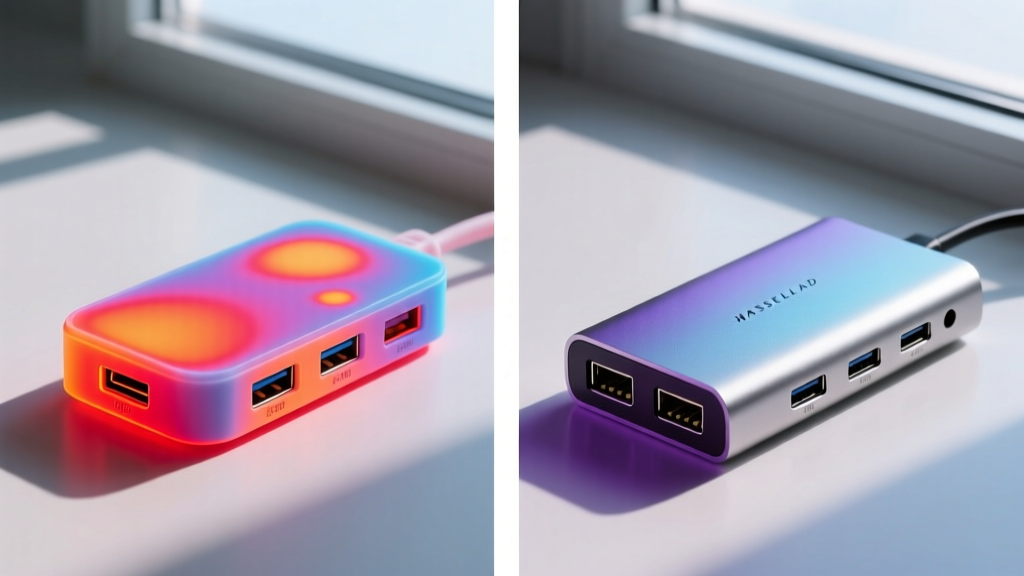
When evaluating budget hubs, external material is only half the battle. According to extensive teardowns and thermal analyses by hardware reviewers at Notebookcheck, the internal potting compound is what separates a reliable $40 hub from a fire hazard.
Top-tier budget hubs in 2026 use epoxy potting—a process where the internal PCB is encased in a thermally conductive resin. This achieves three things:
- Structural Integrity: Prevents the USB-C connector from snapping off the board during accidental cable yanks.
- EMI Shielding: Blocks electromagnetic interference that can cause 2.4GHz wireless mice to lag when a USB 3.0 drive is plugged in.
- Thermal Distribution: Spreads the heat from the HDMI controller evenly across the aluminum chassis.
If a budget hub feels unusually light and 'hollow' when shaken, it likely lacks this epoxy potting. Stick to reputable brands like Anker, UGREEN, and Baseus, which have standardized this manufacturing process even in their sub-$50 SKUs.
Quick Buying Framework for Multi-Port Adapters
Don't just buy the hub with the most ports. Use this 3-step decision framework to match the hub to your specific workflow:
1. The Display Bottleneck Check
If you are connecting to a 144Hz gaming monitor or a 4K professional reference display, you must verify the hub supports HDMI 2.0b or DisplayPort 1.4 Alt-Mode. Hubs advertising '4K HDMI' without specifying the refresh rate are almost always limited to 30Hz, which results in a sluggish, unusable desktop experience.
2. The Power Delivery (PD) Overhead Calculation
Always subtract 15W to 20W from the hub's advertised 'Max Input' to find the actual wattage reaching your laptop. If you use a 96W MacBook Pro charger, buy a hub rated for at least 100W input to ensure your laptop doesn't drain during heavy rendering tasks. For deeper technical specifications on PD 3.1 standards, refer to the USB Implementers Forum.
3. The Data Lane Splitting Reality
Understand that a standard 10Gbps USB-C connection has limited PCIe lanes. If you plug in a 10Gbps external SSD and a 4K display simultaneously, the hub's internal multiplexer will split the bandwidth, potentially dropping your SSD speeds to 5Gbps or causing display flickering. If you need full, unthrottled bandwidth for multiple high-speed devices, you need a Thunderbolt 4 or USB4 dock, which falls outside the budget category.
Frequently Asked Questions
Can I use these budget hubs with my smartphone?
Yes, provided your smartphone supports USB-C DisplayPort Alt-Mode and OTG (On-The-Go). Flagship devices from Samsung (DeX) and Motorola (Ready For) work flawlessly with the UGREEN and Baseus hubs, turning your phone into a desktop workstation.
Why does my wireless mouse lag when my USB hub is in use?
Poorly shielded USB 3.0 data transfer generates broad-spectrum radio frequency noise, specifically in the 2.4GHz band. This directly interferes with wireless mouse dongles. The solution is to use a budget hub with proper internal EMI shielding (like the Baseus 8-in-1) or use a short USB extension cable to move the mouse dongle away from the hub's chassis.
Is it safe to leave the hub plugged in 24/7?
Modern hubs feature over-voltage and over-current protection. However, if you are utilizing the 100W PD pass-through feature continuously, the hub will remain warm to the touch (typically around 40°C - 45°C). This is normal and safe, provided the hub is resting on a hard, ventilated surface rather than buried under papers or fabrics.
Written by
Priya SharmaPriya Sharma holds a Ph.D. in Acoustical Engineering from the University of Southampton and a B.Tech in Electronics from IIT Delhi. She has spent 9 years as a consumer electronics journalist, with deep specialization in audio equipment, camera systems, and assistive technology. Priya is an active member of the Audio Engineering Society (AES) and has co-authored papers on spatial audio perception published in the Journal of the Acoustical Society of America. Her reviews of headphones, portable DACs, and studio monitors include objective measurements using Audio Precision analyzers alongside subjective listening tests. She also serves on the advisory board of the Global Accessibility Reporting Initiative (GARI), evaluating mobile devices for users with visual and hearing impairments.