How to Setup and Configure Giftutility Tech Gadgets: USB-C Hubs
Master the setup of giftutility tech gadgets with our step-by-step guide to configuring USB-C hubs, Thunderbolt docks, and multi-port adapters.
Decoding the Bandwidth Bottleneck
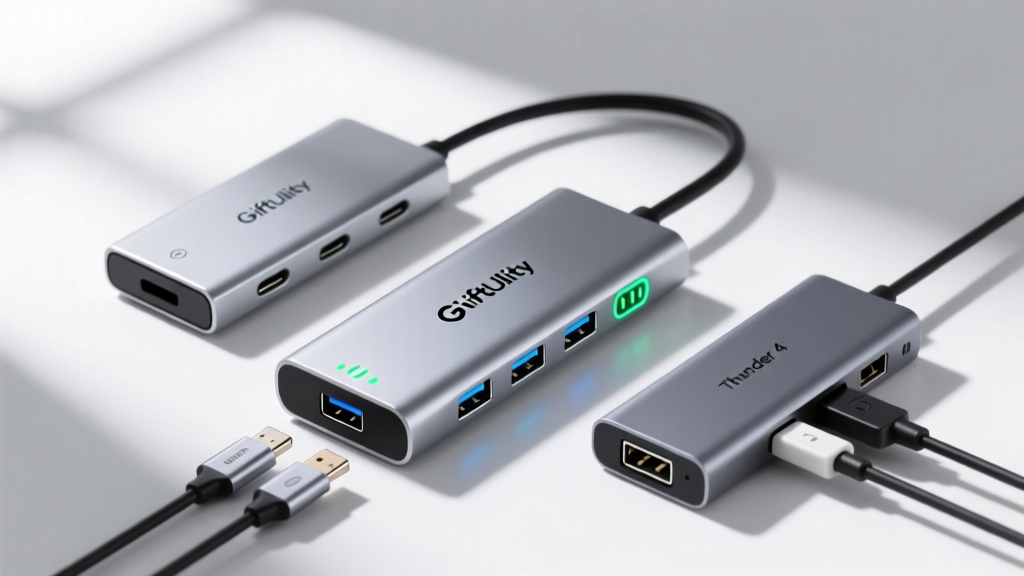
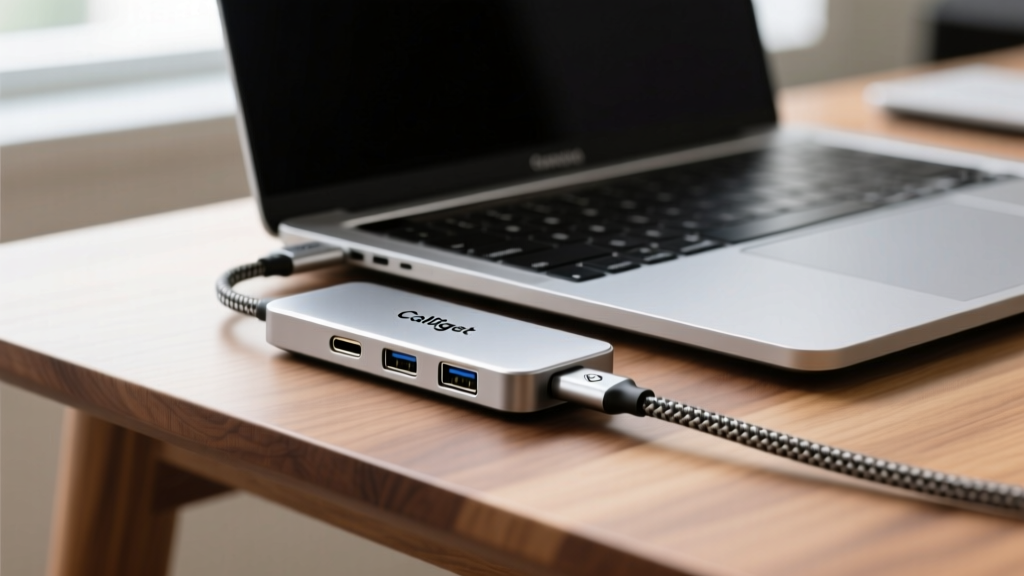
When unboxing and configuring giftutility tech gadgets like high-end multi-port adapters, the physical connection is only 10% of the battle. The remaining 90% involves managing PCIe tunneling, DisplayPort protocols, and Power Delivery (PD) sequencing. A common mistake enthusiasts make is treating all USB-C ports as equal. In reality, a USB-C 3.2 Gen 2 port (10Gbps) and a Thunderbolt 4 port (40Gbps) sharing the same physical connector will yield vastly different results when driving dual 4K monitors and a 10GbE NAS connection simultaneously.
According to Intel's Thunderbolt technology brief, Thunderbolt 4 guarantees 32Gbps of PCIe bandwidth for storage and networking, whereas standard USB4 implementations only mandate 16Gbps. This distinction is critical when setting up a docking station for video editing or virtual machine hosting.
Step-by-Step Configuration for Multi-Monitor Topologies
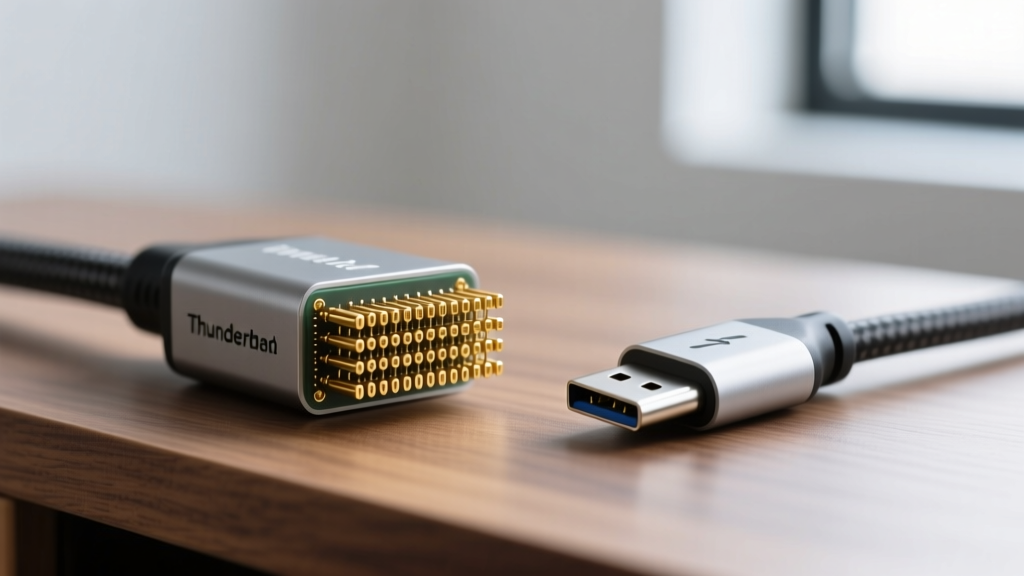
Step 1: Verify Cable Integrity and Pin Density
Before plugging in your dock, verify the host cable. Passive USB-C cables (typically included with monitors or phones) only support USB 2.0 speeds (480Mbps) or basic charging. For a 40Gbps docking station, you must use an active Thunderbolt 4 cable for runs over 0.8 meters. Active cables contain internal signal repeaters in the connector heads to prevent data degradation. If your dock is flickering or dropping peripherals, swap the cable before troubleshooting the dock itself.
Step 2: Configure Display Stream Compression (DSC)
Running dual 4K monitors at 60Hz requires roughly 25.8Gbps of bandwidth. On a 40Gbps connection, this leaves insufficient room for USB data. Modern hubs solve this using VESA Display Stream Compression (DSC) 1.2a.
- Windows 11: DSC is usually enabled by default via the GPU driver (NVIDIA/AMD/Intel). Ensure your GPU control panel is set to 'DisplayPort 1.4 with DSC' rather than falling back to 4:2:0 chroma subsampling.
- macOS: Apple silicon natively supports DSC, but macOS strictly forbids Multi-Stream Transport (MST) for extended displays. If your giftutility tech gadgets rely on MST hubs (common in $50-$80 adapters), macOS will only mirror the displays. You must use a dock with a dedicated Thunderbolt controller that routes two independent DisplayPort streams.
Step 3: Peripheral Bandwidth Allocation
Docks use internal multiplexer chips (like the Intel Goshen Ridge or ASMedia ASM2464PD) to split bandwidth. Connect high-priority, latency-sensitive devices (audio interfaces, 10Gbps SSDs) to the dedicated downstream Thunderbolt/USB4 ports. Connect low-bandwidth peripherals (mice, keyboards, webcams) to the USB 3.2 Gen 1 (5Gbps) or USB 2.0 ports to prevent bus contention.
Protocol and Bandwidth Allocation Matrix
Use this matrix to determine which dock architecture matches your specific workflow requirements. Data sourced from Tom's Hardware docking station benchmarks and USB-IF specifications.
| Protocol Standard | Max Bandwidth | Display Support (Max) | PCIe Tunneling | Ideal Use Case |
|---|---|---|---|---|
| USB 3.2 Gen 2x2 | 20 Gbps | 1x 4K @ 60Hz | No | Basic laptop expansion, single external SSD |
| USB4 (Base) | 20 Gbps | 1x 4K @ 60Hz | Optional (16Gbps) | Ultrabook docking, light peripheral use |
| Thunderbolt 4 / USB4 v1.0 | 40 Gbps | 2x 4K @ 60Hz | Mandatory (32Gbps) | Video editing, dual-monitor workstations |
| Thunderbolt 5 (2026 Standard) | 80 Gbps (120Gbps asymmetric) | 3x 4K @ 144Hz or 1x 8K | Mandatory (64Gbps) | Uncompressed 8K video, eGPU enclosures, NAS |
Real-World Troubleshooting and Edge Cases
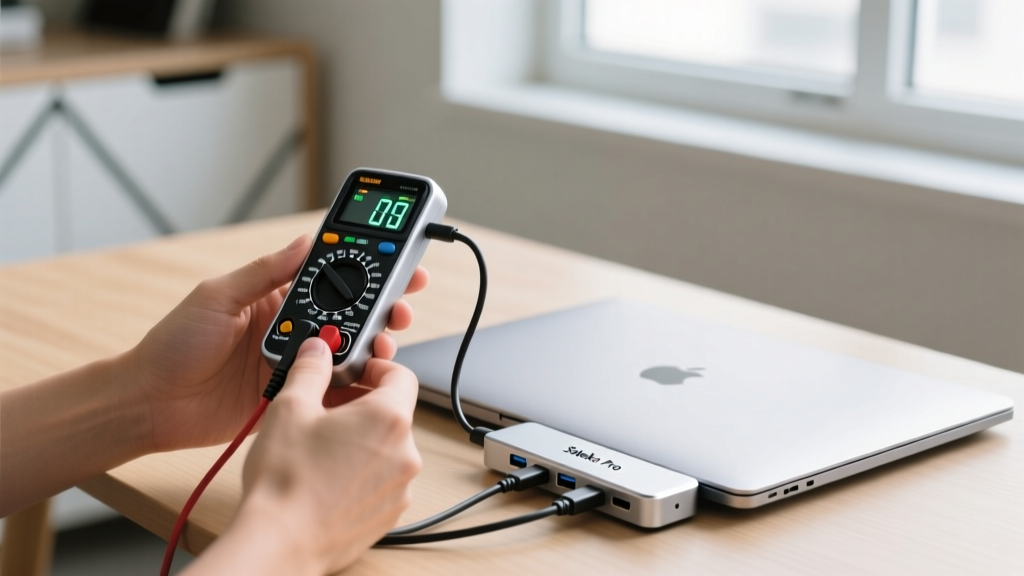
Even premium docking stations encounter physical and electrical anomalies. Here is how to diagnose and resolve the most common failure modes.
1. 2.4GHz Wi-Fi and Bluetooth Dropping
The Cause: Unshielded USB 3.0 data cables and poorly shielded hub chassis emit radio frequency noise precisely in the 2.4GHz spectrum, drowning out Wi-Fi and Bluetooth signals. The Fix: If your wireless mouse stutters or Wi-Fi drops when transferring files via the hub, wrap the hub's cable in a ferrite core or move the hub at least 18 inches away from the laptop's Wi-Fi antenna (usually located in the display hinge). Alternatively, force your router and peripherals onto the 5GHz/6GHz bands.
2. Intermittent Monitor Wake Issues (Sleep/Wake Bug)
The Cause: The dock's DisplayPort controller fails to send the Hot Plug Detect (HPD) signal when the host machine wakes from sleep, leaving monitors stuck in standby. The Fix: Disable 'Allow the computer to turn off this device to save power' for the USB Root Hub in Windows Device Manager. On macOS, disable 'Prevent automatic sleeping on power adapter when the display is off' in Energy Saver, or perform a firmware update on the dock (a critical step for early-run Satechi and Anker models).
3. NVMe Enclosure Throttling or Disconnects
The Cause: Thermal throttling inside the dock's chassis or insufficient power delivery to the M.2 slot. The Fix: Multi-port adapters with built-in NVMe slots often lack adequate thermal pads. If your drive drops to USB 2.0 speeds or disconnects, open the enclosure, apply a 1.5mm copper or graphene thermal pad between the SSD controller and the aluminum chassis, and ensure the dock is plugged into wall power, not running off laptop battery.
Future-Proofing: The 2026 Thunderbolt 5 Transition
As Thunderbolt 5 docks begin saturating the market in 2026, enthusiasts must understand the new asymmetric bandwidth routing. Thunderbolt 5 allows up to 120Gbps of receive bandwidth (from dock to host) while maintaining 40Gbps of send bandwidth. This is specifically engineered for next-generation high-resolution OLED monitors and local AI processing clusters. When upgrading your setup, ensure your host laptop features the Intel Core Ultra (Series 2) or equivalent AMD Ryzen AI processors that natively support the discrete Thunderbolt 5 retimer chips required to unlock these speeds. Investing in legacy 40Gbps hubs is still viable for general productivity, but data-heavy workflows now demand the 80Gbps baseline.
Written by
Ryan TanakaRyan Tanaka holds a B.S. in Mechanical Engineering from Oregon State University and is a certified AWS Solutions Architect. He has built over 80 custom electronics projects ranging from CNC machines to IoT sensor networks, and has reviewed development boards, 3D printers, soldering equipment, and maker tools for the past 6 years. Ryan is an active contributor to 12 open-source hardware projects on GitHub and teaches monthly workshops at three hackerspaces across the Pacific Northwest. His reviews combine engineering rigor with accessibility — he evaluates products not just on specs but on documentation quality, community support, and learning curve for beginners. He has presented at Maker Faire Bay Area, Open Hardware Summit, and the Adafruit community showcase, and maintains a popular blog documenting his build processes.