Beginner vs Expert Work From Home Gadgets: 2026 Setup Guide
Discover the ultimate beginner vs expert work from home gadgets comparison. Learn which 2026 desk upgrades, smart tech, and ergonomic tools fit your budget.
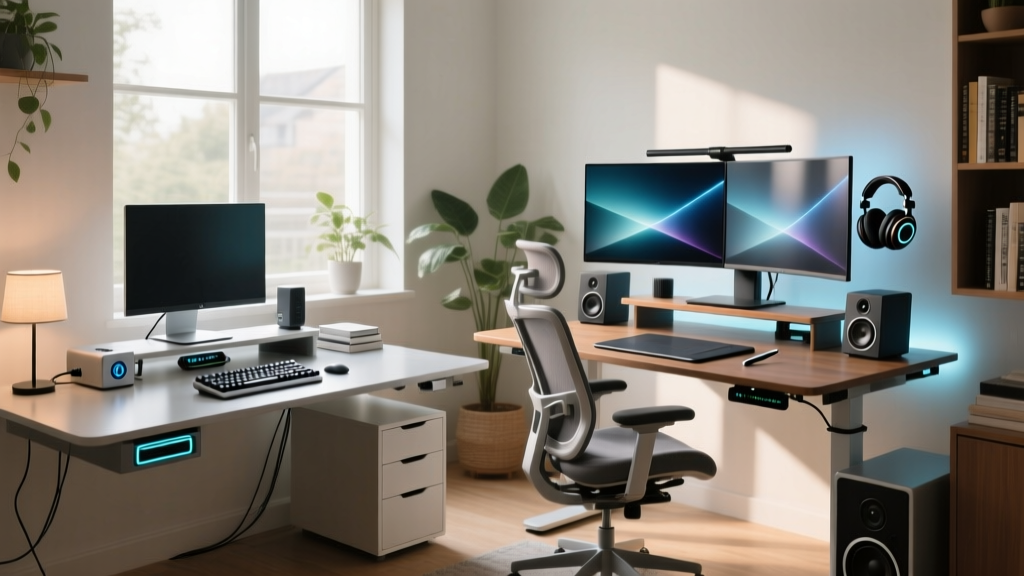
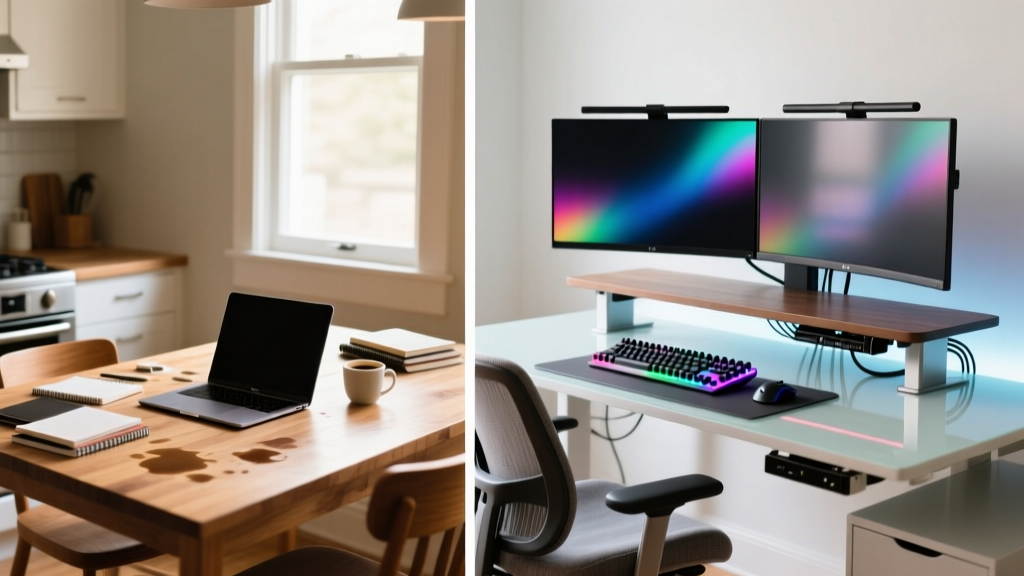
The Evolution of the Home Office: Where Do You Stand?
The transition to remote and hybrid work is no longer a temporary fix; in 2026, it is a permanent fixture of the global economy. However, the divide between a makeshift kitchen-table workspace and a dedicated, ergonomically optimized command center has never been wider. When evaluating work from home gadgets, the market is saturated with options ranging from $20 impulse buys to $2,000 precision-engineered furniture. But how do you know when to stop upgrading?
Whether you are a freelancer building your first dedicated workspace on a tight budget or a seasoned executive looking to maximize productivity and physical longevity, understanding the gap between beginner and expert setups is crucial. According to Cornell University Ergonomics, improper workspace alignment leads to a 40% increase in musculoskeletal fatigue over a standard workday. In this guide, we break down the exact gadgets, pricing, and ROI metrics that separate the novices from the pros.
Tier 1: The Beginner WFH Toolkit (Under $400)
The beginner phase is all about maximizing ROI. The goal here is to eliminate the most glaring pain points of remote work: poor posture, bad audio, and inadequate screen real estate. You don't need a $1,500 chair to be productive; you just need smart, targeted investments.
Visuals & Computing: Dell S2722QC (Approx. $279)
Staring at a 13-inch laptop screen for eight hours is a recipe for cervical strain. The Dell S2722QC is a 27-inch 4K monitor with built-in USB-C power delivery (up to 65W). It acts as a single-cable hub for most ultrabooks, instantly transforming a cramped laptop setup into a spacious desktop environment. The 4K resolution at this price point ensures crisp text rendering, which significantly reduces eye strain during long spreadsheet sessions.
Audio & Presence: Logitech C920s HD Pro (Approx. $69)
While built-in laptop webcams have improved, they still suffer from poor low-light performance and narrow fields of view. The Logitech C920s remains the undisputed king of budget work from home gadgets. Pair it with a basic $25 ring light or a Baseus LED Clip Lamp, and you will look professional on Zoom calls without breaking the bank.
Ergonomics: Amazon Basics Vented Laptop Stand (Approx. $25)
If you cannot afford a sit-to-stand desk, elevating your screen to eye level is non-negotiable. This aluminum stand raises your laptop to the correct ergonomic sightline, preventing "tech neck." Pair it with a basic wireless keyboard and mouse to complete the ergonomic triangle.
Tier 2: The Expert WFH Command Center ($3,500+)
Expert setups are not just about aesthetics; they are about friction reduction, environmental control, and long-term health preservation. The gadgets in this tier are built to last a decade and seamlessly integrate into complex workflows.
Advanced Infrastructure: Secretlab MAGNUS Pro Sit-to-Stand (Approx. $1,099)
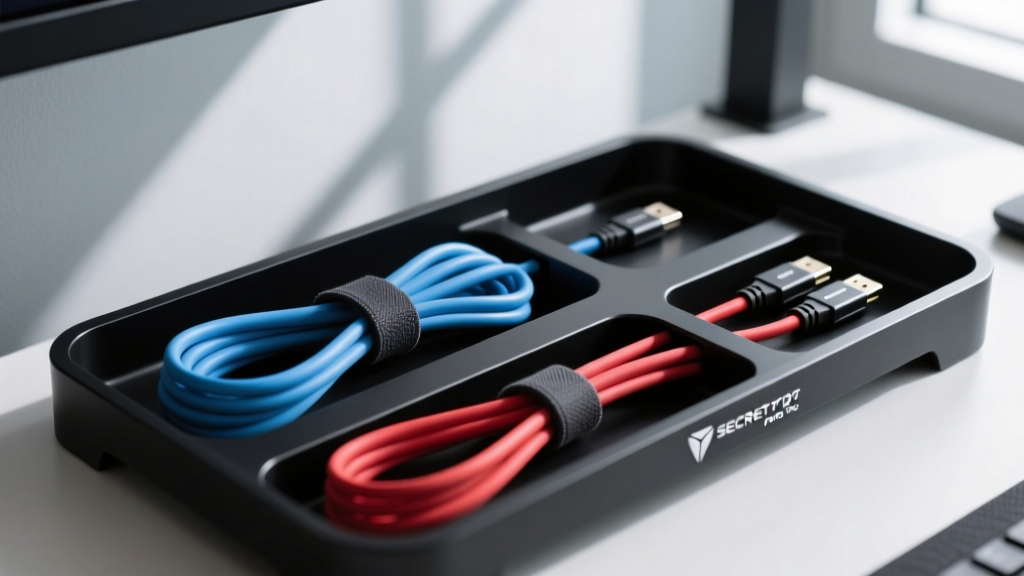
A true expert setup starts with the foundation. The MAGNUS Pro is not just a motorized standing desk; it is a cable management ecosystem. Its patented magnetic cable management column and under-desk tray completely hide power strips and thick braided cables. According to OSHA Ergonomics Guidelines, the ability to seamlessly transition between sitting and standing every 45 minutes reduces lower back pain by up to 32%. The MAGNUS Pro’s whisper-quiet dual motors and programmable memory presets make this transition effortless.
The Seating Standard: Herman Miller Aeron Remastered (Approx. $1,800)
There is a reason the Aeron has been the gold standard since 1994, now updated with PostureFit SL technology for the 2026 market. The 8Z Pellicle suspension material distributes weight evenly and regulates temperature, preventing the heat buildup common in cheap foam chairs. When amortized over its 12-year warranty, the cost is roughly $12.50 per month—a minor premium for preserving your spinal health.
Studio-Grade Presence: Shure MV7+ & Elgato Key Light Air (Approx. $408 combined)
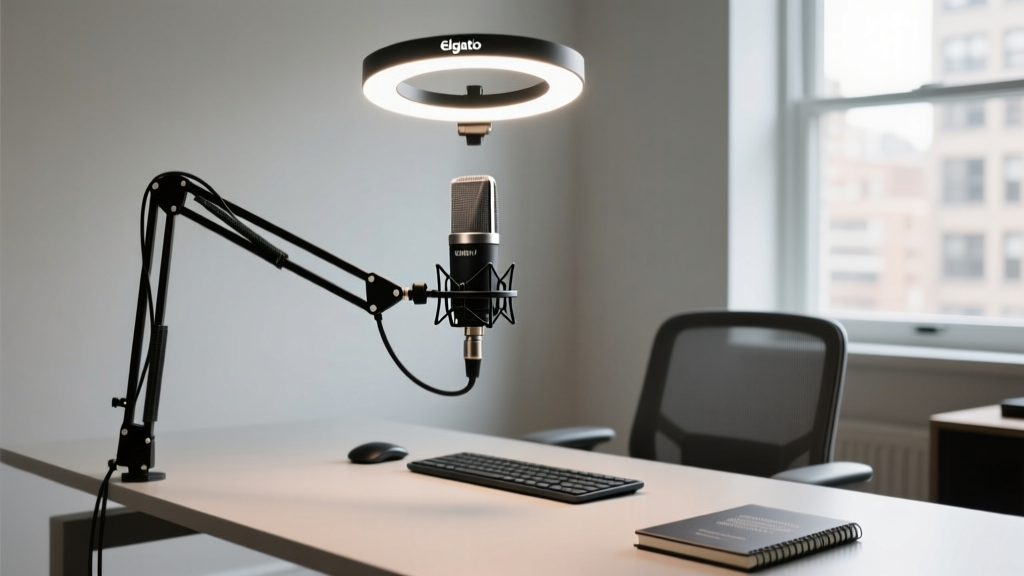
Experts know that audio quality dictates perceived competence on video calls. The Shure MV7+ ($279) features a built-in DSP (Digital Signal Processor) that auto-levels your voice and rejects background noise like mechanical keyboard clatter or HVAC hum. Paired with the Elgato Key Light Air ($129), which mounts directly to your desk edge to eliminate shadows without consuming desktop footprint, your virtual presence rivals a broadcast studio.
Head-to-Head Comparison Matrix
How do these two tiers actually compare when put to the test? Below is a structured breakdown of the beginner versus expert work from home gadgets ecosystem.
| Feature Category | Beginner Setup (Under $400) | Expert Setup ($3,500+) |
|---|---|---|
| Total Investment | $373 (Monitor, Webcam, Stand) | $5,006 (Desk, Chair, Monitor, Audio, Lighting) |
| Ergonomic Lifespan | 1-3 Years (Static seating, basic alignment) | 10-15 Years (Dynamic sit/stand, medical-grade support) |
| Cable Management | Velcro ties, visible power strips | Magnetic under-desk trays, single-cable Thunderbolt 4 routing |
| Audio/Video Clarity | Good (Clear picture, slight room echo) | Broadcast Quality (DSP noise rejection, diffused studio lighting) |
| Setup Time | 15 Minutes (Plug and play) | 3-5 Hours (Assembly, calibration, network integration) |
The "Bridge" Upgrades: Moving from Novice to Pro
You don't need to jump from a $300 setup to a $5,000 setup overnight. If you are currently in the beginner tier, consider these "bridge" gadgets to dramatically improve your workflow without requiring a second mortgage:
- Monitor Arm (ErGear Single Arm, $28): Frees up valuable desk space and allows infinite micro-adjustments to your monitor's height and depth, far surpassing the stock monitor stand.
- Smart Plugs (TP-Link Tapo 4-Pack, $25): Automate your workspace. Set your desk lamp, monitor backlight, and coffee maker to turn on automatically at 8:00 AM, creating a psychological trigger for deep work.
- Desk Mat (Grov Wool Felt, $65): Instantly upgrades the tactile feel of your desk, dampens the sound of your keyboard, and defines your physical workspace boundary.
Expert Insights: Avoiding the Gadget Trap
It is easy to fall into the trap of buying unnecessary tech. The most common mistake intermediate users make is prioritizing RGB aesthetics over ergonomic function. A $200 mechanical keyboard with custom switches is a joy to use, but it will not save you from carpal tunnel if your desk height is incorrect.
"The best work from home gadgets are the ones you forget are there. If your technology requires constant tinkering, troubleshooting, or manual adjustment, it is introducing friction into your day. True expertise in workspace design is about creating an invisible, frictionless environment that supports deep work."
Frequently Asked Questions
Is a second monitor worth it for beginners?
Yes, but only if your primary laptop screen is 14 inches or smaller. A single, high-quality 27-inch 4K monitor (like the Dell S2722QC) is generally better for focus and desk space than two cheap 1080p monitors with thick bezels.
Do I really need an expensive ergonomic chair?
If you work more than 6 hours a day from home, yes. Budget chairs lose their foam density and lumbar support within 18 months. Investing in a certified ergonomic chair like the Herman Miller Aeron or Steelcase Gesture prevents chronic back issues and physical therapy costs down the line.
How do experts hide all their cables?
Experts use a combination of under-desk cable trays, magnetic cable channels (like those built into the Secretlab MAGNUS), and single-cable docking stations. By utilizing Thunderbolt 4 or USB4 docks, you can route your monitor, power, internet, and peripherals through a single cable to your laptop, which can then be hidden inside the desk's central spine.
Written by
Marcus WebbMarcus Webb served as a U.S. Army logistics officer for 8 years, where he managed field equipment procurement and tactical gear evaluation across three combat deployments. After honorable discharge, he earned a certification from the Professional Knife Makers Association and became a certified Wilderness First Responder (WFR). Marcus has tested over 500 EDC products in extreme environments — from -40°F in Alaska to 120°F in the Mojave Desert — using military-spec testing protocols. His reviews of multi-tools, tactical flashlights, and survival gear are known for their rigorous methodology: controlled drop tests from 6 feet, 120-minute water submersion at 2 meters, and lateral torque testing at 45 Nm. He is a member of the Blade Show judging panel and contributes to OutdoorGearLab.