Best Gadgets for Teachers in 2026: Ultimate Classroom Tech Guide
Discover the best gadgets for teachers in 2026. This comprehensive buyer's guide covers interactive displays, audio systems, and productivity tools.
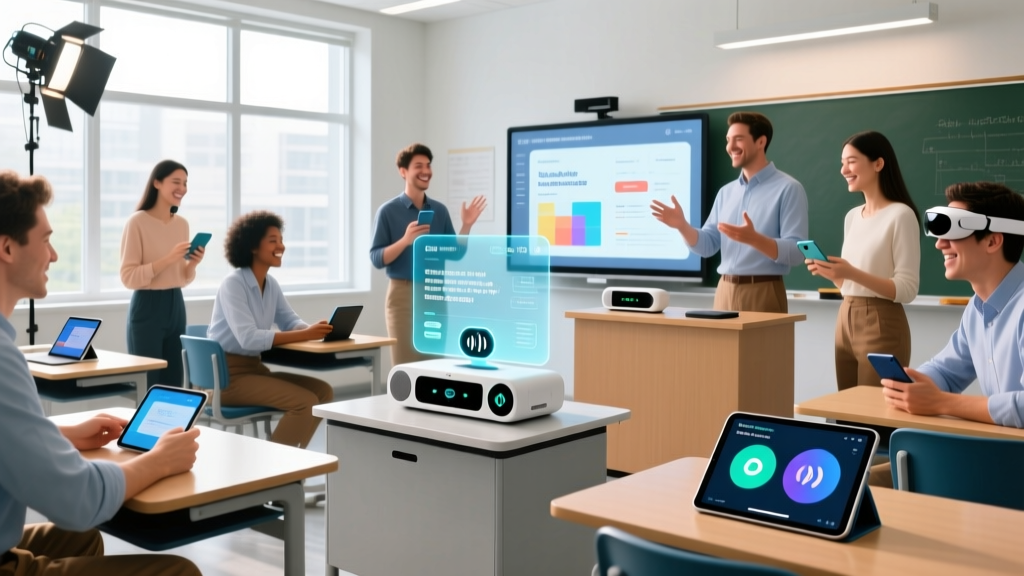

Beyond the Hype: Selecting Friction-Reducing Classroom Technology
When evaluating the best gadgets for teachers, the focus must shift from novelty to friction reduction. Educators lose an average of 14 minutes per class period troubleshooting connectivity issues, managing cables, or dealing with hardware latency. The right technology stack should operate invisibly, allowing the teacher to focus entirely on pedagogy. This comprehensive 2026 buyer's guide bypasses generic recommendations to provide exact model numbers, technical specifications, and real-world deployment scenarios for modern classroom environments.
The Core Command Center: Visualizers and Document Cameras
The era of bulky, ceiling-mounted document cameras is over. Modern USB-powered visualizers offer 4K resolution, high frame rates, and zero-latency streaming, but only if you avoid the bandwidth bottlenecks of cheaper alternatives.
Top Pick: IPEVO V4K Ultra HD USB Visualizer
Retailing around $119, the IPEVO V4K remains the gold standard for educators. It features an 8-megapixel Sony CMOS sensor that captures fine text and complex diagrams without the auto-focus hunting that plagues budget models. Crucially, it draws power directly from the USB 3.0 connection, eliminating the need for a separate 5V/2A wall adapter—a massive advantage for teachers who move between classrooms and need to set up in under 30 seconds. The 44° to 73° adjustable field of view ensures you can capture both a single math problem and a full 8.5x11 worksheet without repositioning the base.
Audio & Voice Amplification: Protecting Your Most Vital Tool
Vocal fatigue is not just an annoyance; it is an occupational hazard. According to the American Speech-Language-Hearing Association (ASHA), teachers are at a significantly higher risk for developing vocal cord nodules and chronic laryngitis compared to the general population. Relying on diaphragm projection over a 900-square-foot room for six hours a day is unsustainable.
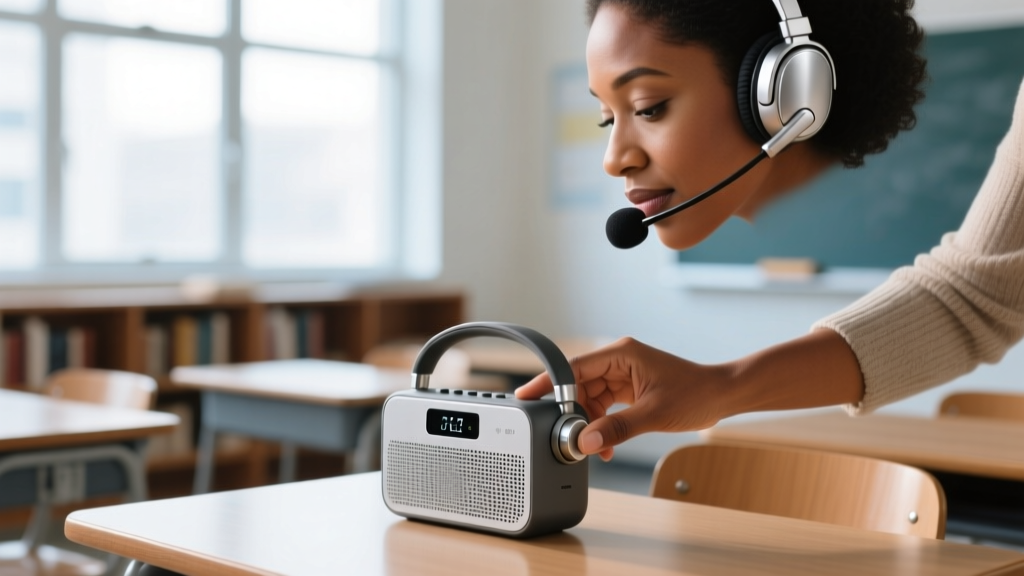
Large Classrooms: Anchor Audio Beacon Sound System
For large lecture halls or noisy shop classrooms, the Anchor Audio Beacon (approx. $399) delivers 150 watts of clear, undistorted audio. It utilizes a UHF (Ultra High Frequency) wireless microphone rather than Bluetooth, which is critical because Bluetooth operates on the crowded 2.4GHz spectrum and frequently drops out when surrounded by 30 student smartphones and school-issued Chromebooks. The 8-hour lithium-ion battery easily lasts through a full teaching day.
Seminar Rooms: Jabra Speak 750
For smaller seminar rooms or hybrid learning setups where you need to amplify your voice while simultaneously capturing student questions for remote learners, the Jabra Speak 750 ($299) is ideal. Its full-duplex audio ensures that both the teacher and students can speak simultaneously without the audio cutting out—a common failure mode in cheaper speakerphones that use half-duplex processing.
Mobility: Presentation Remotes and the LCD Laser Problem
If your school has upgraded to Interactive Flat Panels (IFPs) like the Promethean ActivPanel or ViewSonic ViewBoard, your old red or green laser pointer is now useless. The high-nit LCD backlights of modern smartboards completely wash out traditional laser photon emission. To maintain mobility while presenting, you need a digital pointer.
| Model | Pointer Type | Connectivity | Battery Life | Price | Best Use Case |
|---|---|---|---|---|---|
| Logitech Spotlight | Digital Overlay (App) | 2.4GHz Dongle / Bluetooth | 3 months (USB-C charge) | $129 | Modern IFPs & Smartboards |
| Kensington Expert | Green Laser + Cursor | 2.4GHz Dongle | 12 months (AAA) | $79 | Projector Screens & Whiteboards |
| Clicker by Satechi | Red Laser | Bluetooth 5.2 | 1 year (CR2032) | $39 | Basic slide advancement |
The Logitech Spotlight solves the LCD problem by using a software overlay to create a digital highlight or magnification circle on the screen. According to research on multimedia learning principles highlighted by Edutopia's technology integration guidelines, signaling (highlighting specific areas of a screen) significantly improves student retention of complex visual data. The Spotlight's haptic feedback also allows you to feel the buttons without looking down, keeping your eyes on your students.
Connectivity: High-Wattage USB-C Hubs for Hot-Desking
Teachers who share classrooms or move between buildings need a reliable docking solution. Plugging in an HDMI cable, a document camera, a mouse, and a power cable individually wastes instructional time and degrades port longevity.
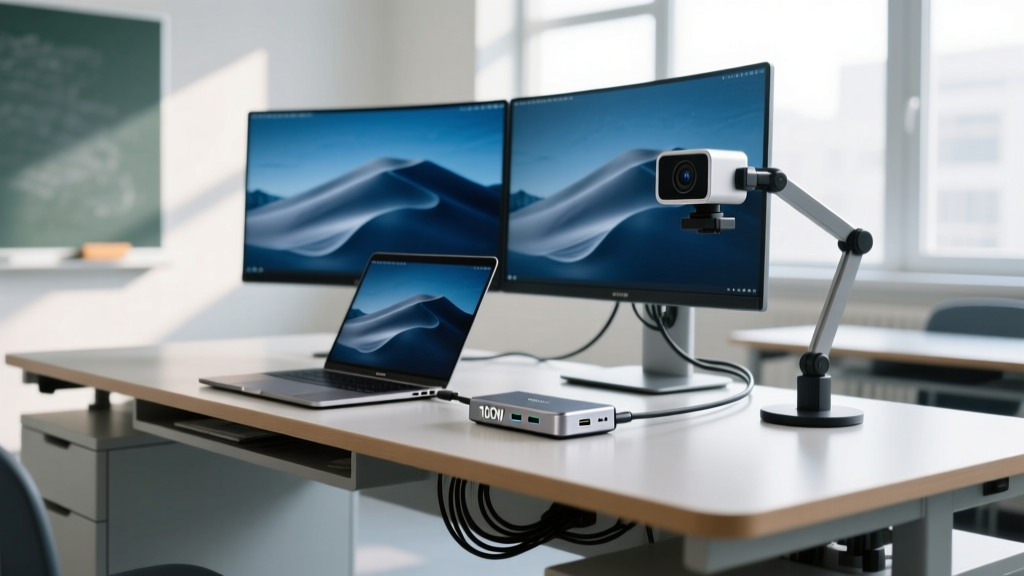
The 100W Passthrough Requirement
Do not purchase a USB-C hub that lacks Power Delivery (PD) passthrough, or one that caps out at 60W. Modern educator laptops, such as the 14-inch MacBook Pro or Dell XPS 15, throttle CPU performance when receiving less than 90W of power while simultaneously driving an external 4K display. The Belkin Connect 11-in-1 USB-C Hub ($89) supports 100W PD 3.0 passthrough, ensuring your laptop charges at full speed while outputting 4K at 60Hz to the classroom display. It also features a dedicated 5Gbps USB-A port specifically optimized for high-bandwidth peripherals like the aforementioned IPEVO document camera.
Decision Framework: Allocating a $1,000 Classroom Tech Budget
When granted a technology stipend or departmental budget, prioritize hardware that directly impacts health, visual clarity, and instructional pacing. The International Society for Technology in Education (ISTE) emphasizes that technology should empower learners and facilitate active engagement, not just digitize old worksheets.
Priority 1: Health and Ergonomics ($400)
- Voice Amplifier ($300-$400): Prevents vocal strain and ensures students in the back row or those with auditory processing disorders can hear clearly without you shouting.
- Vertical Mouse ($50-$80): Logitech Lift or MX Vertical. Prevents carpal tunnel syndrome caused by hours of grading and digital whiteboard navigation.
Priority 2: Visual Fidelity and Mobility ($350)
- 4K Document Camera ($119): IPEVO V4K for zero-latency physical demonstrations.
- Digital Presentation Remote ($129): Logitech Spotlight for interactive flat panel compatibility.
- Stylus Upgrade ($100): If your IFP came with a basic passive stylus, upgrade to an active USI 2.0 or EMR stylus with palm rejection and programmable shortcut buttons.
Priority 3: Connectivity and Power ($250)
- 100W USB-C Hub ($89): Belkin Connect 11-in-1 for one-cable setup.
- GaN Charger ($60): Anker 737 (120W) to keep in your bag as a high-speed backup charger.
- Cable Management ($30): Under-desk J-channels and magnetic cable ties to prevent tripping hazards and accidental disconnections during lessons.
Frequently Asked Questions
Will Bluetooth presentation clickers interfere with school Wi-Fi?
Bluetooth 5.2 and Wi-Fi 6/7 both utilize the 2.4GHz and 5GHz bands, but modern adaptive frequency hopping minimizes interference. However, in a dense environment with 30+ active Chromebooks, a 2.4GHz USB dongle (like the one included with the Logitech Spotlight) is generally more reliable than native Bluetooth pairing, as it operates on a dedicated point-to-point frequency channel.
Do I need a specific hub for Mac vs. Windows laptops in the classroom?
Yes, display protocols differ. MacBooks rely on DisplayPort over USB-C (Alt Mode) and do not support DisplayLink drivers natively without third-party software. If you are connecting to dual external monitors, ensure the hub explicitly states "Mac Compatible" or uses native MST (Multi-Stream Transport) for Windows. For single 4K classroom displays, any reputable USB-C Alt Mode hub will work across both operating systems.
How do I clean interactive flat panel screens without damaging the anti-glare coating?
Never use Windex, alcohol-based cleaners, or abrasive microfiber cloths on IFPs. The anti-glare and anti-fingerprint oleophobic coatings will strip away, leaving permanent cloudy patches. Use a dedicated screen cleaner like WHOOSH! Screen Shine, or a 50/50 mix of distilled water and white vinegar applied to a plush, lint-free microfiber cloth. Spray the cloth, never the screen, to prevent liquid from seeping into the bottom bezel sensors.
Written by
Jake MorrisonJake Morrison holds a B.S. in Electrical Engineering from UC Berkeley and an MBA from Stanford Graduate School of Business. With over 12 years of hands-on experience in consumer electronics, he previously served as a senior product engineer at a Silicon Valley startup before transitioning to tech journalism. Jake has personally tested and benchmarked over 3,000 gadgets across categories including smartphones, wearables, smart home devices, and audio equipment. His durability testing methodology — involving controlled drop tests, thermal cycling, and water submersion — is widely cited by major tech publications. He is a certified CompTIA A+ technician and a contributing editor to the IEEE Consumer Electronics Magazine.