Cool Gadgets for MacBook Pro: Best Wearable Tech Syncs (2026)
Discover the best wearable tech and cool gadgets for MacBook Pro power users, from Auto Unlock security to bio-telemetry workflow integrations.
Beyond the Desk: Wearables as Mac Power Accessories
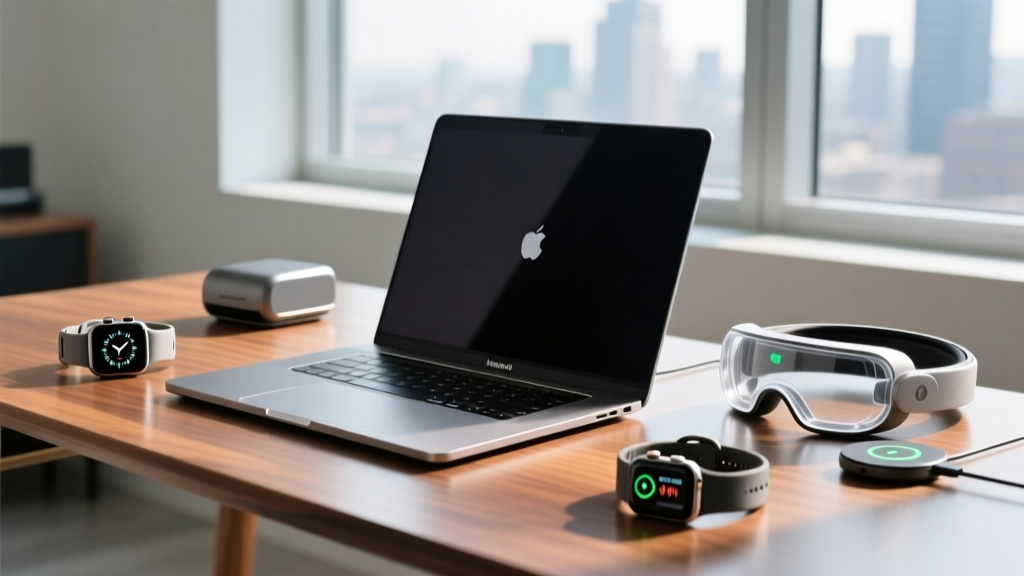
When curating the ultimate list of cool gadgets for MacBook Pro power users, most hardware guides stop at Thunderbolt docks, GaN chargers, and low-profile mechanical keyboards. But the most transformative accessories for your Apple Silicon workflow are not sitting on your desk—they are strapped to your wrist or sliding onto your finger. Modern wearables have evolved from simple step-counters into sophisticated biometric and security nodes that integrate deeply with macOS.
For developers, video editors, and data scientists spending 10+ hours a day on an M4 or M5 MacBook Pro, the right wearable acts as an extension of the machine. By leveraging the U2 Ultra Wideband chip, HealthKit APIs, and proximity-based Focus filters, these devices reduce friction, protect your cognitive load, and monitor the physical toll of deep work sessions.
The Proximity & Security Matrix
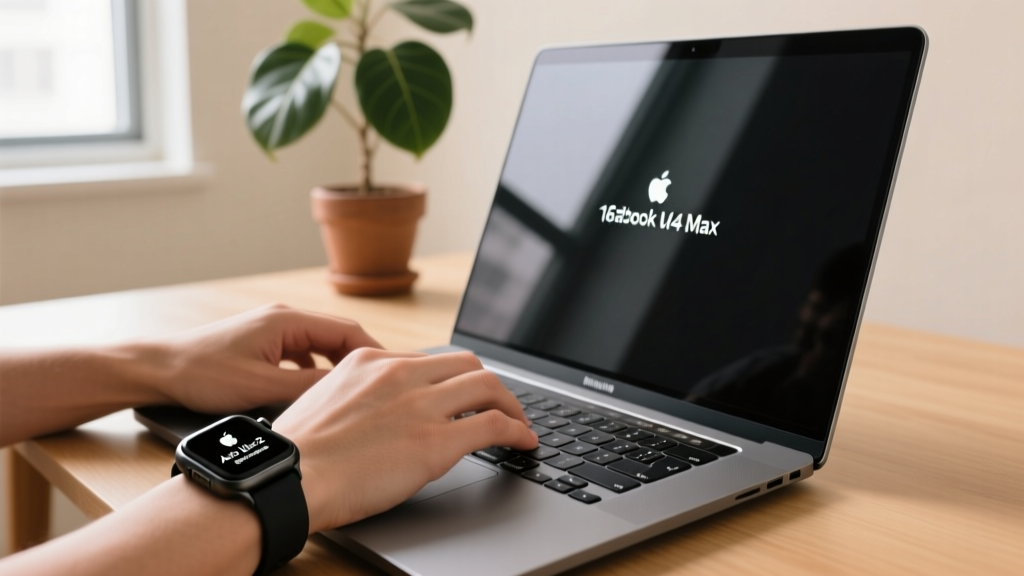
The most immediate productivity gain from pairing a wearable with your MacBook Pro is the elimination of password friction. Apple’s Auto Unlock feature uses a secure Bluetooth Low Energy (BLE) handshake combined with Ultra Wideband (UWB) spatial awareness to verify that your watch is physically on your wrist and within a few feet of your Mac.
While older Apple Watches relied solely on Bluetooth RSSI (signal strength) to estimate distance—making them vulnerable to relay attacks—the Apple Watch Series 10 and Ultra 2 utilize the S10 SiP and U2 chip. This allows macOS to measure the exact time-of-flight of radio signals, ensuring the watch is within 3 feet of your MacBook Pro before unlocking. This spatial awareness also enables Precision Finding for your Mac if you misplace it in a large office or studio.
According to Apple's official security documentation, Auto Unlock requires your Mac to be signed into iCloud with two-factor authentication enabled, and your watch must be secured with a passcode and Wrist Detection turned on. When configured correctly, you never have to type your login password or use Touch ID when waking your Mac from sleep, saving an estimated 4-6 minutes of cumulative micro-interactions per day.
Bio-Telemetry for Deep Work Sessions
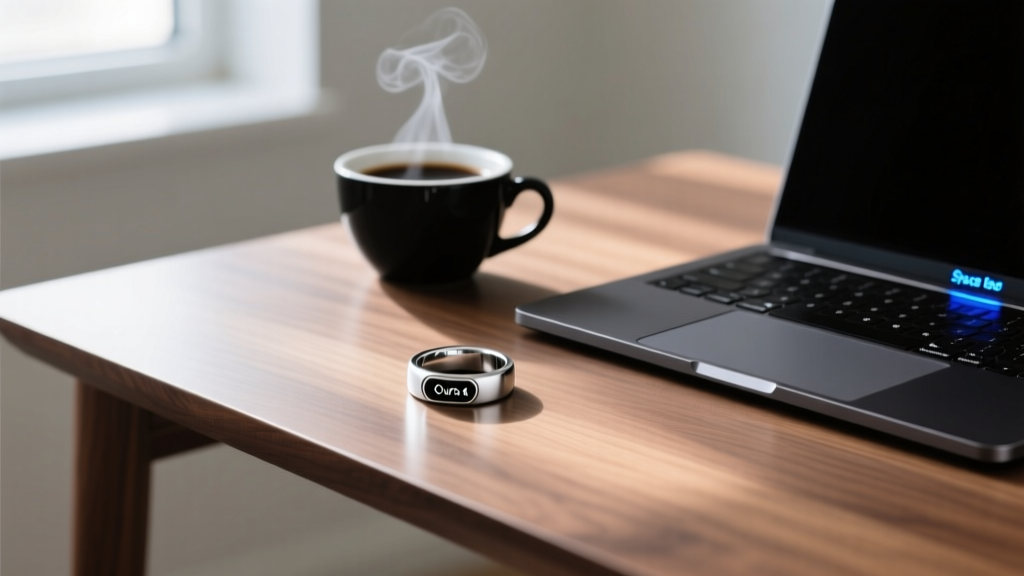
Coding, color grading, and compiling large datasets require sustained cognitive effort. Wearables like the Oura Ring Gen 4 and Whoop 4.0 track Heart Rate Variability (HRV) and resting heart rate, which are direct indicators of central nervous system fatigue. By syncing this data to your Mac, you can objectively measure when your cognitive capacity is depleting.
Through the Apple HealthKit framework, third-party macOS productivity apps can pull your biometric data to adjust your workflow. For example, apps like Timing.app or custom Python scripts using the HealthKit API can correlate your HRV drops with specific IDE sessions, revealing that your code quality degrades significantly after 90 minutes of continuous compilation debugging.
| Wearable | Mac Sync Method | Battery Life | 2026 Pricing |
|---|---|---|---|
| Apple Watch Ultra 2 | Native iCloud / HealthKit | 36-72 Hours | $799 |
| Oura Ring Gen 4 | iOS Bridge to HealthKit | 7-8 Days | $349 + $5.99/mo |
| Whoop 4.0 | iOS Bridge to HealthKit | 4-5 Days | $30/mo (Hardware included) |
Haptic Routing: Taming macOS Notification Overload
The MacBook Pro’s Retina display is a canvas for deep work, but macOS notification banners are a primary source of context switching. A major, underutilized feature of the Apple Watch is its ability to act as a haptic filter for your Mac. By routing specific alerts to your wrist, you can keep your Mac screen in full-screen IDE mode while still receiving critical pings.
Step-by-Step: Configuring Mac-to-Wrist Focus Filters
- Create a Deep Work Focus on Mac: Go to System Settings > Focus > Create a 'Deep Work' profile.
- Filter Mac Notifications: Under 'Silence Notifications From', add Slack, Mail, and Messages. Leave GitHub, Terminal, and Xcode in the 'Allow' list.
- Mirror to Apple Watch: Open the Watch app on your paired iPhone. Navigate to Focus > Deep Work, and ensure 'Mirror iPhone' is toggled on.
- Enable Haptic Routing: In the Watch app, go to Notifications. For the allowed apps (like GitHub), select 'Custom' and ensure 'Haptic Alert' is set to 'Prominent'. This ensures a physical tap on your wrist when a pull request is approved, without lighting up your MacBook display.
The Physical Toll: Wearables as Ergonomic Enforcers
High-end MacBook Pro users are notorious for marathon work sessions. Prolonged sitting restricts blood flow and degrades posture, directly impacting long-term health and short-term cognitive stamina. Research highlighted by the Mayo Clinic demonstrates that prolonged sedentary behavior is linked to increased metabolic risks, independent of exercise.
Users of Garmin, Polar, or Coros watches often ask if they can unlock their Mac. Natively, macOS Auto Unlock is restricted to the Apple Watch ecosystem due to the Secure Enclave integration. However, third-party Mac apps like Apple Watch Auto Unlock alternatives (e.g., Near Lock or MacID) historically used Bluetooth RSSI to lock/unlock Macs via any BLE device. Be aware that these third-party apps lack the UWB spatial precision of native Apple implementations and may trigger false unlocks if your phone/watch is on the other side of a thin drywall partition.
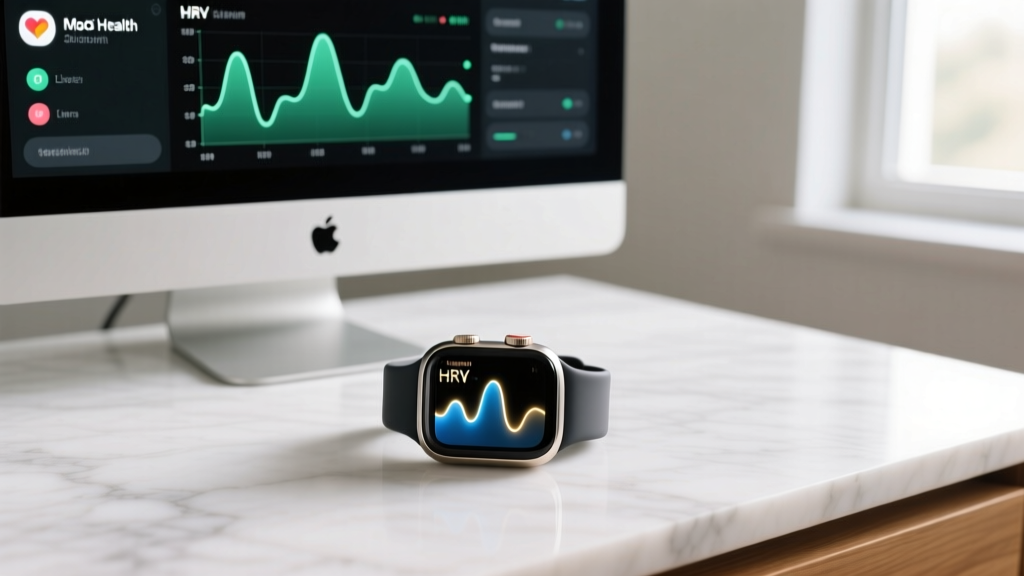
By pairing an Oura Ring or Apple Watch with a macOS menu bar app like HazeOver or Time Out, you can create biometric break triggers. Instead of a dumb timer that pauses your workflow every 45 minutes, you can script a shortcut that triggers a screen dim only when your wearable detects a sustained drop in HRV and a prolonged lack of movement, ensuring you are prompted to stand and stretch exactly when your physiological stress peaks.
Troubleshooting Mac-Wearable Handoff Failures
Even with the M4 Max and S10 chips, the Bluetooth PAN (Personal Area Network) that handles Handoff and Auto Unlock can occasionally corrupt. If your Apple Watch fails to unlock your MacBook Pro, do not immediately reboot the machines. Follow this specific diagnostic sequence:
- Verify Wi-Fi Direct: Auto Unlock requires both devices to be on the same Wi-Fi network, but more importantly, it uses a peer-to-peer Wi-Fi Direct connection for the initial handshake. Ensure 'Wi-Fi' and 'Bluetooth' are toggled ON in the Mac's Control Center, not just enabled in System Settings.
- Reset the Handoff Token: On your Mac, go to System Settings > General > AirDrop & Handoff. Toggle Handoff OFF, wait 10 seconds, and toggle it ON. This forces the Mac to request a new cryptographic token from iCloud.
- Clear the Keychain Sync Cache: If Touch ID and Watch Unlock both fail, open the 'Keychain Access' app on your Mac. Search for 'com.apple.applocker' and delete the cached entries. Restart the Mac to force a fresh pull from iCloud Keychain.
- Check Wrist Detection: If you have tattoos on your wrist, the optical heart rate sensor on the Apple Watch may fail to detect skin contact, causing Wrist Detection to disengage and disabling Auto Unlock. Switch the watch to your other wrist or use a specialized tattoo-friendly sensor patch.
Final Workflow Integration
Treating wearable tech as one of the essential cool gadgets for MacBook Pro setups shifts the paradigm from passive tracking to active workflow management. Whether you are using the Apple Watch Ultra 2 for spatial security and haptic routing, or the Oura Ring Gen 4 to monitor the physiological cost of your compile times, these devices bridge the gap between human biology and Apple Silicon performance. Invest in the ecosystem integration, configure the APIs, and let your wearable dictate the pace of your deep work.
Written by
Nina PetrovaNina Petrova holds a Master's degree in Child Development from the Erikson Institute and a B.S. in Nursing from the University of Illinois at Chicago. She worked as a pediatric nurse for 6 years before transitioning to family technology consulting, bringing clinical rigor to her evaluations of kid-friendly gadgets, educational toys, and parental control software. Nina has reviewed over 400 children's tech products, testing each for safety compliance (CPSC and ASTM standards), developmental appropriateness across age groups, screen-time impact, and data privacy practices. She serves on the Children's Technology Review advisory board and has testified before the FTC on children's data protection in connected toys. Her reviews are trusted by parents and educators alike for their evidence-based approach to balancing technology benefits with child safety.