Step-by-Step Setup: Smart Gadgets for Elderly People at Home
Learn how to configure and secure smart home gadgets for elderly people. This step-by-step tutorial covers voice assistants, fall sensors, and automated lighting.
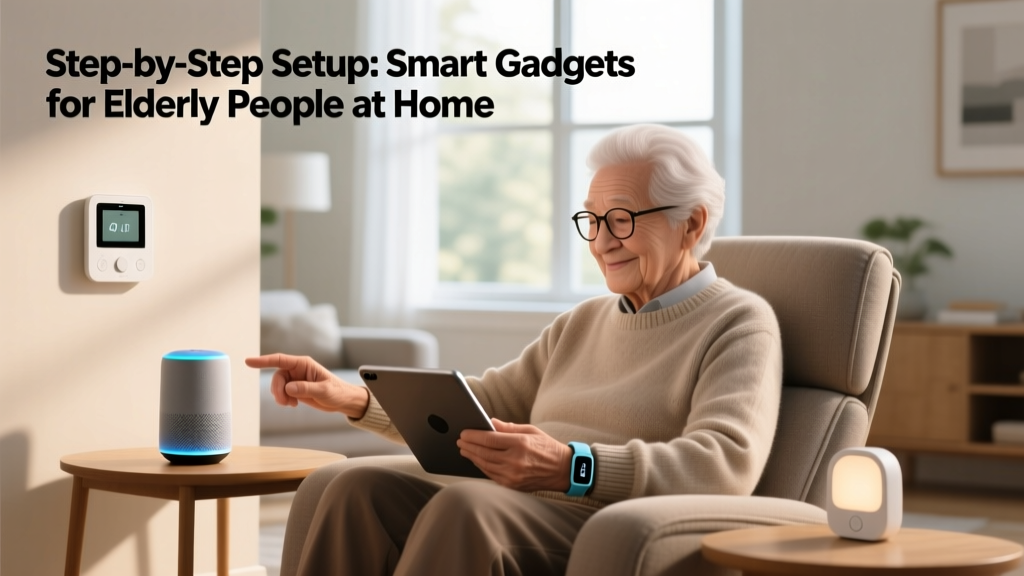
Configuring smart home technology for aging relatives requires moving beyond basic unboxing. While purchasing the right devices is the first step, the actual value of gadgets for elderly people lies in precise calibration, accessibility tuning, and routine automation. A poorly configured smart display or an overly sensitive motion sensor can cause frustration, false alarms, and eventual abandonment of the technology.
This tutorial provides exact configuration steps for establishing a reliable, privacy-conscious smart home ecosystem designed specifically for aging in place. We will cover central hub accessibility, radar-based fall detection, and circadian-friendly lighting automation.
Phase 1: Calibrating the Central Hub for Accessibility
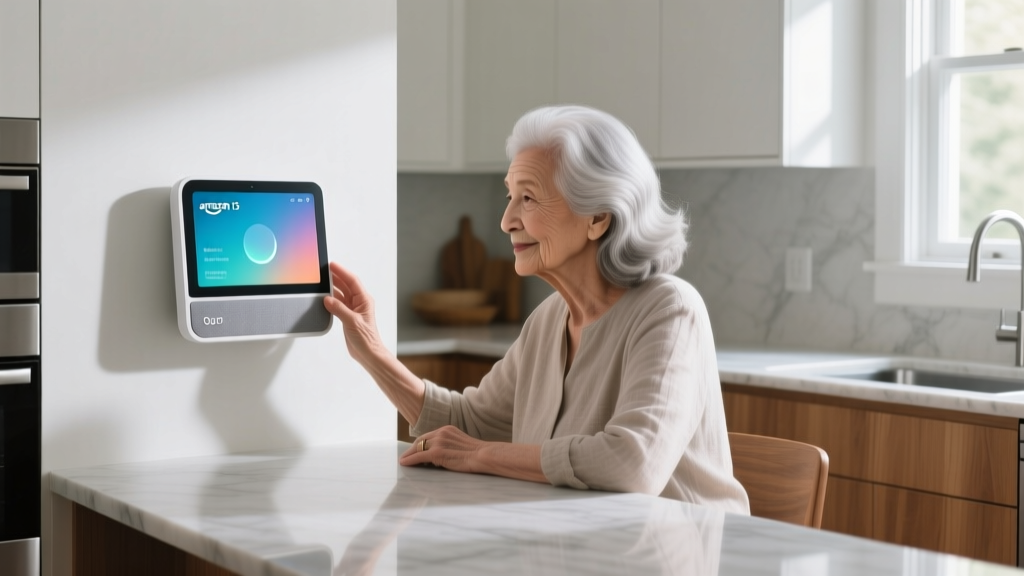
The Amazon Echo Show 15 (2nd Gen) remains the optimal central hub for seniors due to its 15.6-inch 1080p display, which mimics a traditional wall-mounted calendar or picture frame. However, out-of-the-box settings prioritize general consumers, not those with visual, auditory, or motor impairments.
Enabling Critical Accessibility Features
Navigate to Settings > Accessibility on the device or via the Alexa app to adjust the following parameters:
- Alexa Captioning: Toggle this ON. This displays real-time text transcripts of Alexa's spoken responses, which is essential for users with mild to moderate hearing loss who may miss verbal confirmations.
- Tap to Alexa: Enable this feature to create on-screen tiles for common actions (e.g., 'Call Daughter', 'Play News', 'Turn on Lights'). This bypasses voice recognition entirely, providing a vital fallback for users with speech impediments, cognitive fatigue, or in loud environments.
- Show and Tell: Turn this on to allow the user to hold an item (like a can of soup or a medication bottle) up to the camera and ask, 'Alexa, what am I holding?' The visual AI will identify the object and read the label aloud.
If the senior user has a softer voice or a tremor, go to Settings > Voice Responses and adjust the 'Speech Sensitivity' slider to 'High'. This lowers the decibel threshold required for the microphone array to register a wake word command.
Phase 2: Implementing Non-Invasive Fall Detection
Camera-based monitoring in private areas like bathrooms is a privacy violation and often rejected by seniors. According to the World Health Organization, falls are the leading cause of fatal and non-fatal injuries among older adults, making bathroom monitoring critical. The solution is mmWave (millimeter wave) radar technology.
Setting Up the Aqara FP2 Presence Sensor
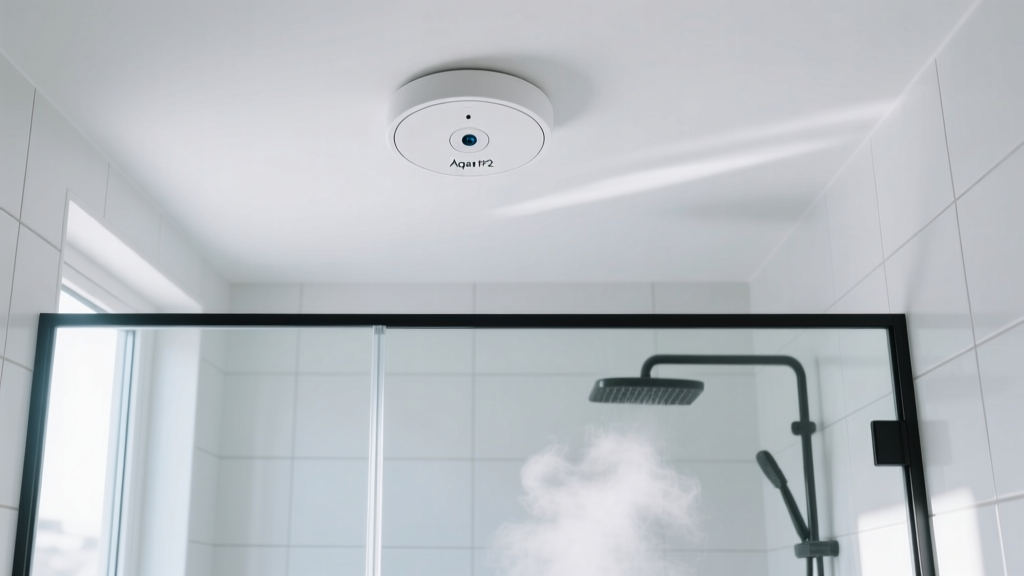
The Aqara FP2 uses radar to map a room in 3D, detecting human presence and falls without capturing optical images. Proper physical installation is the most common point of failure.
- Mounting Height: Install the FP2 on the ceiling, exactly 6.5 to 8 feet (2 to 2.4 meters) above the floor. Mounting it on a wall will severely degrade the fall detection algorithm's accuracy.
- Interference Check: Ensure the sensor is at least 3 feet away from ceiling fans, HVAC vents, or moving curtains. The mmWave radar will interpret spinning fan blades as continuous motion, causing false occupancy readings.
- Zone Mapping: Open the Aqara Home app and use the 'Zone Positioning' feature. Draw a specific zone over the shower/tub area and designate it as a 'Fall Detection Zone'. This prevents the system from triggering an alert if the user simply lies down on a bed in an adjacent mapped zone.
Pairing with Wearable Fall Detection
Radar sensors cannot monitor users in the yard or away from home. Pair the home setup with an Apple Watch Ultra 2 or Series 9. According to Apple Support documentation, Fall Detection is not automatically enabled for all users. You must open the Watch app on the paired iPhone, navigate to My Watch > Emergency SOS, and manually toggle 'Fall Detection' ON. Note that if the user's Apple ID age is set to under 55, this feature defaults to OFF to prevent false alerts during high-impact sports.
Phase 3: Circadian Lighting and Fall Prevention Routines
Harsh, cool-white lighting at night disrupts melatonin production and causes temporary blindness when a senior wakes up to use the restroom, significantly increasing trip hazards. We use Philips Hue motion sensors paired with color-capable bulbs to create automated, circadian-friendly pathways.
Configuring the Nighttime Pathway Routine
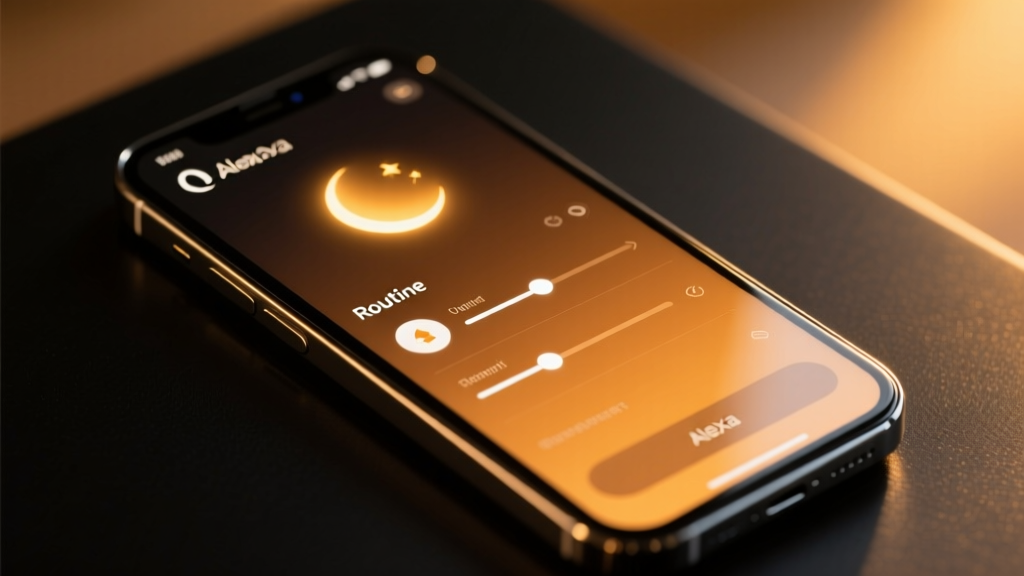
In the Alexa app, create a new Routine with the following specific parameters:
- Trigger: When Philips Hue Motion Sensor (Hallway) detects motion.
- Condition: Time is between 10:00 PM and 6:00 AM.
- Action: Set Hallway and Bathroom Hue bulbs to 10% brightness, Color Temperature 2200K (Warm Amber).
- Duration: Turn off after 3 minutes of no motion detected.
Never configure nighttime motion routines to use 'Energize' or 'Concentrate' Hue scenes. These scenes output light at 4000K-6500K (heavy blue spectrum), which suppresses melatonin and can cause insomnia or disorientation if the senior attempts to return to sleep.
Voice Assistant Accessibility Matrix
Choosing the right ecosystem depends heavily on the specific physical and cognitive needs of the user. Below is a comparison of how the top platforms handle senior-specific accessibility requirements.
| Feature | Amazon Alexa (Echo Show) | Apple Siri (HomePod) | Google Assistant (Nest Hub) |
|---|---|---|---|
| Visual Captions | Yes (Native, highly customizable) | No (Audio only on HomePod) | Yes (Native on Nest Hub displays) |
| Touch Fallback UI | Yes (Tap to Alexa tiles) | No (Relies entirely on voice/Siri button) | Limited (Standard smart display UI) |
| Caregiver Access | Alexa Care Hub (Free, robust monitoring) | Apple Check In (Via iOS, not HomePod native) | Google Nest Care (Requires subscription) |
| Voice Clarity Adaptation | High sensitivity settings available | Adapts to user voice over time via ML | Standard sensitivity, relies on far-field mics |
Phase 4: Privacy Hardening and Security Guardrails
Elderly users are disproportionately targeted by voice phishing and unauthorized smart home access. Securing the network and the devices is a non-negotiable final step.
Implementing Voice PINs and Drop-In Restrictions
- Require Voice PIN for Purchases: In the Alexa app, go to Settings > Account Settings > Voice Purchasing. Turn this ON and set a 4-digit PIN. This prevents accidental or scam-induced orders placed via voice command.
- Restrict 'Drop In' Feature: The Drop In feature acts as an unannounced intercom. Go to Settings > Communications > Drop In and set it to 'My Household' or 'Contacts Only'. Never leave it on 'All Contacts', as this allows anyone in the user's address book to open a live audio/video feed without an acceptance prompt.
- Disable Wake Word in Private Zones: If an Echo device is placed in a bedroom, use the physical microphone mute button (red ring) or set a routine that automatically disables the microphones between 9:00 PM and 7:00 AM to ensure absolute privacy during sleep and dressing.
Properly configuring these gadgets for elderly people transforms a collection of isolated electronics into a cohesive, supportive environment. By focusing on precise sensor placement, circadian lighting parameters, and strict privacy guardrails, caregivers can provide robust safety nets that respect the user's independence and dignity.
Written by
Jake MorrisonJake Morrison holds a B.S. in Electrical Engineering from UC Berkeley and an MBA from Stanford Graduate School of Business. With over 12 years of hands-on experience in consumer electronics, he previously served as a senior product engineer at a Silicon Valley startup before transitioning to tech journalism. Jake has personally tested and benchmarked over 3,000 gadgets across categories including smartphones, wearables, smart home devices, and audio equipment. His durability testing methodology — involving controlled drop tests, thermal cycling, and water submersion — is widely cited by major tech publications. He is a certified CompTIA A+ technician and a contributing editor to the IEEE Consumer Electronics Magazine.